> ## Documentation Index
> Fetch the complete documentation index at: https://docs.fintoc.com/llms.txt
> Use this file to discover all available pages before exploring further.
# Accept a Payment
> Learn how to use Fintoc's Payment Initiation API
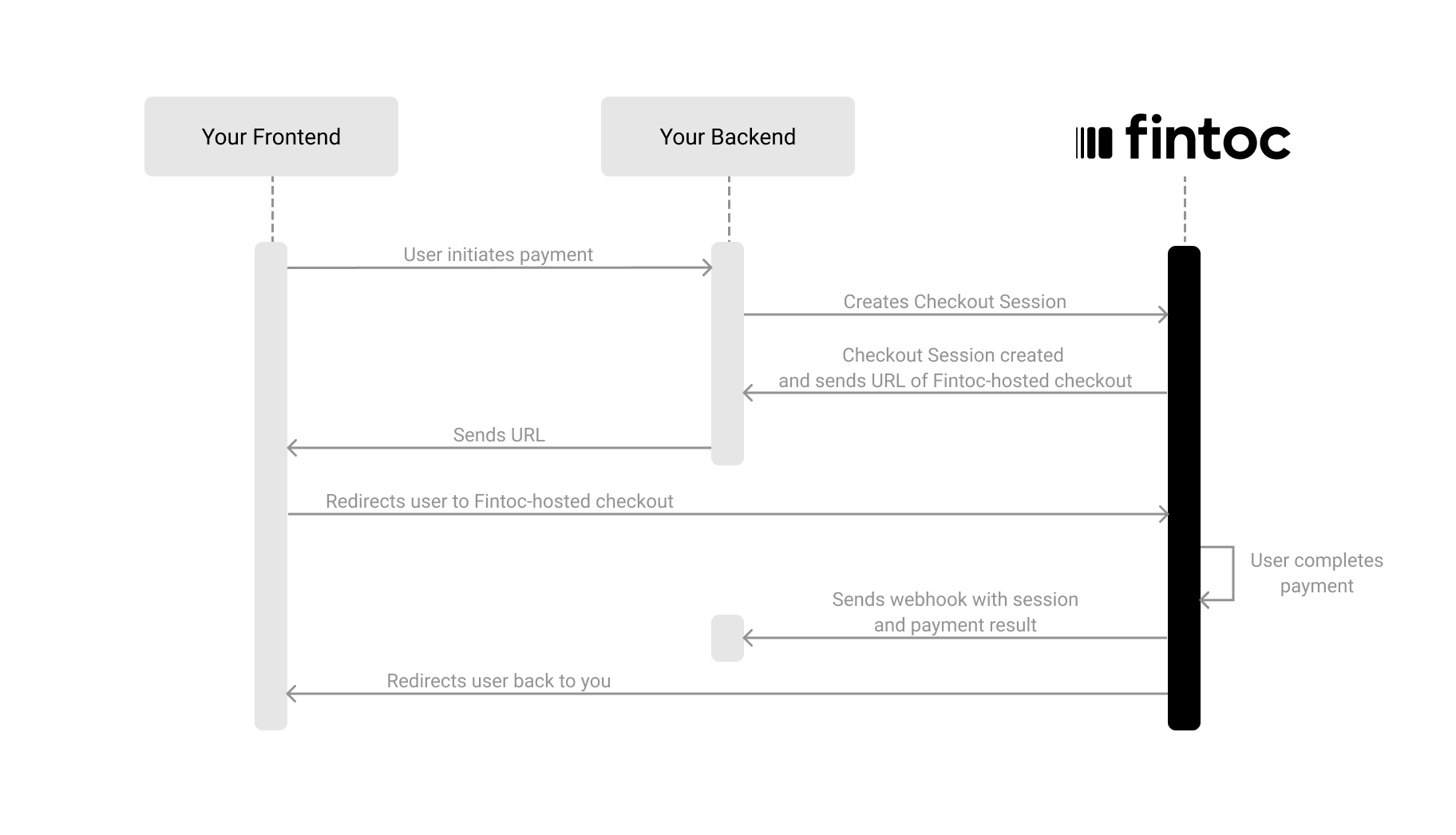
There are three steps to accept payments using Fintoc:
1. On your backend, create a `Checkout Session` using your **Secret Key**
2. Redirect your user to complete the payment on the Fintoc-hosted checkout page
3. Handle post-payments events
The following diagram shows how Fintoc interacts with both your backend and your frontend
 # Optional: install our backend SDK
If you’re using Python, you can install our [Python SDK](https://github.com/fintoc-com/fintoc-python) to make it easier to interact with our API. The SDK automatically handles pagination, lets you easily verify Fintoc's webhooks, and offers many other helpful features.
```
pip install fintoc
```
If you’re using Node, you can install our [Node SDK](https://github.com/fintoc-com/fintoc-node) to make it easier to interact with our API. The SDK automatically handles pagination, lets you easily verify Fintoc's webhooks, and offers many other helpful features.
```
npm install fintoc
```
# Create a session
The [Checkout Session](/reference/payments-api/checkout-sessions/checkout-session-object) object represents your intent to collect a payment from a customer and tracks state changes throughout the payment process.
Using your [Secret Key](/docs/home/api-keys), create a `Checkout Session` from your backend with the required parameters: `amount`, `currency`, `success_url`and `cancel_url` like the example bellow:
```curl theme={null}
curl --request POST "https://api.fintoc.com/v2/checkout_sessions" \
--header "Authorization: YOUR_TEST_SECRET_API_KEY" \
--header "Content-Type: application/json" \
--data-raw '{
"amount": 350000,
"currency": "CLP",
"success_url": "https://merchant.com/success",
"cancel_url": "https://merchant.com/987654321",
"customer_data": {
"tax_id": {
"type": "cl_rut",
"value": "12088191"
},
"name": "Felipe Castro",
"email": "name@example.com",
"metadata": {}
},
"billing_items": [
{
"price_data": {
"product_data": {
"name": "T‑Shirt A",
"description": "Limited edition"
},
"unit_amount": 350000
},
"quantity": 1
}
],
"metadata": {
"order": "987654321"
}
}'
```
```javascript Node theme={null}
const { Fintoc } = require('fintoc');
const fintoc = new Fintoc('YOUR_SECRET_KEY');
const checkoutSession = await fintoc.checkoutSessions.create({
amount: 1000,
currency: 'mxn',
customer_email: 'name@example.com'
});
```
```python theme={null}
from fintoc import Fintoc
client = Fintoc('YOUR_TEST_SECRET_API_KEY')
checkout_session = client.checkout_sessions.create(
amount=1000,
currency='clp',
customer_email='name@example.com'
)
```
```ruby theme={null}
require 'net/http'
require 'uri'
require 'json'
checkout_session = {
amount: 1000,
currency: 'clp',
customer_email: 'name@example.com'
}
uri = URI("https://api.fintoc.com/v1/checkout_sessions")
header = {
Accept: 'application/json', Authorization: 'YOUR_TEST_SECRET_API_KEY'
}
http = Net::HTTP.new(uri.host, uri.port)
request = Net::HTTP::Post.new(uri.request_uri, header)
request.body = checkout_session.to_json
response = http.request(request)
```
| Parameter | Example | Description |
| ------------- | -------------------------------- | ----------------------------------------------------------------------------------------------------------------------------------------------------------------------------------------------------------------------------------------------------------------------------------------------------------------------------------------------------------------------------------------------------- |
| `amount` | 2476 | **Required** amount of money that needs to be paid. It's represented **as integer with no decimals** in the smallest possible unit of the currency you are using.
# Optional: install our backend SDK
If you’re using Python, you can install our [Python SDK](https://github.com/fintoc-com/fintoc-python) to make it easier to interact with our API. The SDK automatically handles pagination, lets you easily verify Fintoc's webhooks, and offers many other helpful features.
```
pip install fintoc
```
If you’re using Node, you can install our [Node SDK](https://github.com/fintoc-com/fintoc-node) to make it easier to interact with our API. The SDK automatically handles pagination, lets you easily verify Fintoc's webhooks, and offers many other helpful features.
```
npm install fintoc
```
# Create a session
The [Checkout Session](/reference/payments-api/checkout-sessions/checkout-session-object) object represents your intent to collect a payment from a customer and tracks state changes throughout the payment process.
Using your [Secret Key](/docs/home/api-keys), create a `Checkout Session` from your backend with the required parameters: `amount`, `currency`, `success_url`and `cancel_url` like the example bellow:
```curl theme={null}
curl --request POST "https://api.fintoc.com/v2/checkout_sessions" \
--header "Authorization: YOUR_TEST_SECRET_API_KEY" \
--header "Content-Type: application/json" \
--data-raw '{
"amount": 350000,
"currency": "CLP",
"success_url": "https://merchant.com/success",
"cancel_url": "https://merchant.com/987654321",
"customer_data": {
"tax_id": {
"type": "cl_rut",
"value": "12088191"
},
"name": "Felipe Castro",
"email": "name@example.com",
"metadata": {}
},
"billing_items": [
{
"price_data": {
"product_data": {
"name": "T‑Shirt A",
"description": "Limited edition"
},
"unit_amount": 350000
},
"quantity": 1
}
],
"metadata": {
"order": "987654321"
}
}'
```
```javascript Node theme={null}
const { Fintoc } = require('fintoc');
const fintoc = new Fintoc('YOUR_SECRET_KEY');
const checkoutSession = await fintoc.checkoutSessions.create({
amount: 1000,
currency: 'mxn',
customer_email: 'name@example.com'
});
```
```python theme={null}
from fintoc import Fintoc
client = Fintoc('YOUR_TEST_SECRET_API_KEY')
checkout_session = client.checkout_sessions.create(
amount=1000,
currency='clp',
customer_email='name@example.com'
)
```
```ruby theme={null}
require 'net/http'
require 'uri'
require 'json'
checkout_session = {
amount: 1000,
currency: 'clp',
customer_email: 'name@example.com'
}
uri = URI("https://api.fintoc.com/v1/checkout_sessions")
header = {
Accept: 'application/json', Authorization: 'YOUR_TEST_SECRET_API_KEY'
}
http = Net::HTTP.new(uri.host, uri.port)
request = Net::HTTP::Post.new(uri.request_uri, header)
request.body = checkout_session.to_json
response = http.request(request)
```
| Parameter | Example | Description |
| ------------- | -------------------------------- | ----------------------------------------------------------------------------------------------------------------------------------------------------------------------------------------------------------------------------------------------------------------------------------------------------------------------------------------------------------------------------------------------------- |
| `amount` | 2476 | **Required** amount of money that needs to be paid. It's represented **as integer with no decimals** in the smallest possible unit of the currency you are using.
If your payment uses Chilean peso, an amount of CLP 2476 is represented as 2476.
If your payment uses Mexican peso, an amount of MXN 24.76 is represented as 2476.
[Read here to learn more](/docs/home/currencies). |
| `currency` | CLP | **Required** currency that is being used for the payment. We currently support CLP and MXN. |
| `success_url` | `https://merchant.com/success` | **Required** URL to redirect the user in case of payment succeeded. |
| `cancel_url` | `https://merchant.com/987654321` | **Required** URL to redirect the user in case they decide to cancel the payment and return to your website. |
| `metadata` | `{"order": "987654321"}` | Optional set of key-value pairs that you can attach to an object. This can be useful for storing additional information about the object in a structured format. |
**Send the Business Profile object if you are processing payments for a submerchant**
You can also add the `business_profile` object when creating a session to customize the name displayed as the "Recipient" on the payment flow.
[Read here to learn more](/reference/payments-api/checkout-sessions/checkout-sessions-create).
## Include Customer Data (Optional)
When creating a `Checkout Session`, you can include customer information. This allows Fintoc to display only the available payment methods for that specific customer, such as verifying if the amount exceeds the [transaction limit](/docs/payments/overview-payment-initiation/transaction-limits) for a selected bank in the payment initiation method.
| Attribute | Type | Description |
| ---------- | -------- | ------------------------------------------------------------------------------------------------------------------------------------------------------------------------------------------------------------------------------------------------------------------------------------------------- |
| `tax_id` | `object` | **Required** object that identifies the customer at a fiscal or regulatory level.
It includes a `type` field indicating the format or country-specific identifier (for example, "`cl_rut`" for Chilean RUT) and a `value` field containing the actual tax identification number as a string. |
| `name` | `string` | Optional full name of the customer. |
| `email` | `string` | Optional customer email linked to a Checkout Session. This is used to notify a user in case of a refund. |
| `metadata` | `object` | Optional custom data that can store additional information about the customer (e.g., internal IDs, CRM references, or tags) |
## Pre select a Payment Methods (Optional)
You can create a `Checkout Session` without specifying payment methods. In this case, users can select from all available options on the Fintoc-hosted checkout page, based on the session parameters (`amount`, `customer`, `currency`) and the payment methods you have enabled in Fintoc.
Alternatively, you can explicitly define the payment method(s) for the session. For example, in the request below, the `payment_initiation` method is set, combined with `payment_method_options`, where the institution `cl_banco_estado` is pre-selected for the user. In this scenario, the payment flow presented to the user will be limited to this specific method and bank.
```curl theme={null}
curl --request POST "https://api.fintoc.com/v2/checkout_sessions" \
--header "Authorization: YOUR_TEST_SECRET_API_KEY" \
--header "Content-Type: application/json" \
--data-raw '{
"amount": 350000,
"currency": "CLP",
"flow": "payment",
"success_url": "https://merchant.com/success",
"cancel_url": "https://merchant.com/987654321",
"payment_method_types": ["payment_initiation"],
"payment_method_options": {
"payment_initiation": {
"institution_id": "cl_banco_estado"
}
},
"customer_data": {
"tax_id": {
"type": "cl_rut",
"value": "12088191"
},
"name": "Felipe Castro",
"email": "name@example.com",
"metadata": {}
},
"billing_items": [
{
"price_data": {
"product_data": {
"name": "T‑Shirt A",
"description": "Limited edition"
},
"unit_amount": 350000,
"recurrence": null
},
"quantity": 1
}
]
}'
```
```javascript Node theme={null}
const { Fintoc } = require('fintoc');
const fintoc = new Fintoc('YOUR_SECRET_KEY');
const checkoutSession = await fintoc.checkoutSessions.create({
amount: 1000,
currency: 'mxn',
customer_email: 'name@example.com'
});
```
```python theme={null}
from fintoc import Fintoc
client = Fintoc('YOUR_TEST_SECRET_API_KEY')
checkout_session = client.checkout_sessions.create(
amount=1000,
currency='clp',
customer_email='name@example.com'
)
```
```ruby theme={null}
require 'net/http'
require 'uri'
require 'json'
checkout_session = {
amount: 1000,
currency: 'clp',
customer_email: 'name@example.com'
}
uri = URI("https://api.fintoc.com/v1/checkout_sessions")
header = {
Accept: 'application/json', Authorization: 'YOUR_TEST_SECRET_API_KEY'
}
http = Net::HTTP.new(uri.host, uri.port)
request = Net::HTTP::Post.new(uri.request_uri, header)
request.body = checkout_session.to_json
response = http.request(request)
```
| Attribute | Type | Description |
| :----------------------- | :----------------- | :----------------------------------------------------------------------------------------------------------------------------------------------------- |
| `payment_method_types` | `array of strings` | Optional definition of the available payment method(s) for the session. Methods current available are `payment_initiation` (bank transfers) and `card` |
| `payment_method_options` | `hash` | Optional array of settings for each available payment method |
 **Using your own Checkout Page**
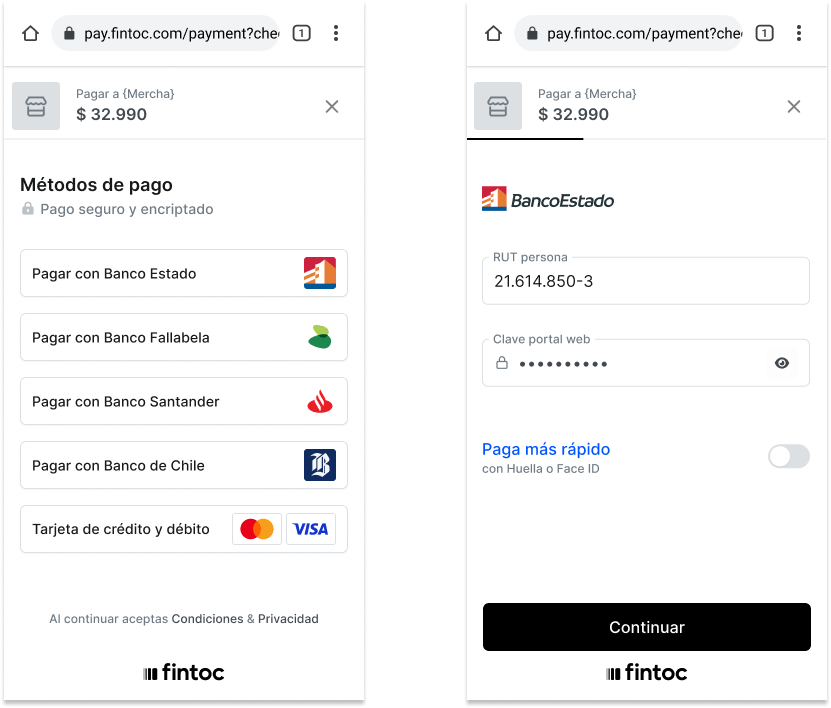
When you have your own checkout page, you should set the payment\_method to redirect users to the Fintoc Checkout after they've already selected their preferred payment method.
This skips Fintoc's payment method selection screen and directs users straight to the specific payment flow, instead of letting Fintoc manage the full checkout experience.
## Response when creating a Checkout Session
After making the request to create the [Checkout Session](/reference/payments-api/checkout-sessions/checkout-session-object), Fintoc should respond with something like this:
```json theme={null}
{
"id": "cs_li5531onlFDi235",
"amount": 350000,
"cancel_url": "https://merchant.com/987654321",
"created_at": "2024-06-04T15:32:46.721Z",
"success_url": "https://merchant.com/success",
"currency": "CLP",
"customer_data": {
"email": "name@example.com",
"metadata": {},
"name": "Felipe Castro",
"tax_id": {
"type": "cl_rut",
"value": "12088191"
}
},
"metadata": {},
"mode": "test",
"object": "checkout_session",
"status": "created",
"updated_at": "2024-06-04T15:32:46.721Z",
"redirect_url": "https://checkout.fintoc.com/checkout_session_01HXY3Z7X5YQ54V8G2E1KJQAVF"
}
```
In the response, you should receive the `redirect_url` attribute. In the following step, you'll use this attribute to redirect the user to complete the payment.
# Choose how to open Fintoc's widget
The Fintoc Widget is the client-side component your customers will interact with to make payments using Fintoc. It handles credential validation, multi-factor authentication, and error management for all supported financial institutions.
You have two options for opening the widget:
## Option 1: Open the widget on your frontend
If you want to display the Fintoc Widget directly on your checkout page (without redirecting the user), use the `session_token` returned in the API response when creating a **Checkout Session**.
Use your [Public Key](/docs/home/api-keys) and the Session Token to configure the widget.
```html theme={null}
Fintoc Demo
```
If you're receiving payments in Mexico, set the `country` parameter to `mx`.
For more configuration options and advanced usage, refer to the [Widget guide](/docs/resources/widget) .
**Use our Widget Webview if you are building a mobile app**
If you are integrating Fintoc into an iOS or Android application, you can use our [Webview integration.](/docs/resources/widget/widget-webview-integration-old)
## Option 2: Open the widget via a Redirect Page
Alternatively, you can redirect users to a Fintoc-hosted payment page. After completing the payment, they’ll be automatically redirected back to your site.
To use this method, include both `success_url` and `cancel_url` parameters when creating the **Checkout Session**. The API response will include a `redirect_url` that you can use to send the user to the payment page.
Based on the payment result, the user will be redirected to either the success or cancel URL.
For more details, check out the [Redirect Page integration guide](/docs/payments/redirect-page).
# Handle post-payments events
Once a Checkout Session finishes, you handle the payment result in your frontend and complete the payment in your backend. For your frontend you will use the widget callback, and for your backend you will use the events sent by webhooks.
**Use webhooks events to complete payments**
Your customer could close the browser window or quit the app before the `onSuccess` widget callback executes. For this reason, you should always use the `checkout_session.finished` event to handle post-payments actions like sending an order confirmation email to your customer, logging the sale in a database, or starting a shipping workflow.
## Handle the payment result on your frontend
Once a Payment associated to the Checkout Session finishes successfully, the widget executes the `onSuccess` callback. You need to pass this function to the widget upon creation.
With this callback, you can decide what to do with your user's frontend once the payment is complete, for example:
* Redirect the user to a post-sale or post-payment view
* Show the user a success screen.
**Don't use this callback as a payment confirmation**
You shouldn't trust on the `onSuccess` callback as a confirmation for a successful payment, as the frontend is an insecure realm and a malicious third party may execute a JavaScript function that simulates that the transfer was executed successfully.
For a more comprehensive validation mechanism, we strongly encourage [integrating webhooks](/docs/resources/webhooks-walkthrough) and subscribing to the `checkout_session.finished` event. By implementing webhooks, you can ensure timely and accurate updates on payment statuses, enhancing the overall security and reliability of your payment confirmation process.
### Handle errors
You don't only need to handle succeeded payments because payments can also fail. For example, your customer doesn't have funds in their bank account to complete the payment.
When a payment fails or is rejected by your customer, the widget executes the `onExit` callback. With this callback, you can handle errors on your frontend. For example, you can invite your customer to use another payment method.
## Complete the payment on your backend
Fintoc sends a `checkout_session.finished` event when the payment completes. Use the [follow the webhook guide](/docs/resources/webhooks-walkthrough) to receive these events and run actions, such as sending an order confirmation email to your customer, logging the sale in a database, or starting a shipping workflow.
The `checkout_session.finished` event includes information about the related payment, and looks like this:
```json theme={null}
{
"id": "evt_a4xK32BanKWYn",
"object": "event",
"type": "checkout_session.finished",
"data": {
id: "cs_li5531onlFDi235",
created_at: "2025-06-15T15:22:11.474Z",
object: "session",
currency: "clp",
amount: 1200,
customer_email: "customer@example.com",
expires_at: "2025-06-16T15:22:11.474Z",
product: "payments",
mode: "live",
status: "finished",
session_token: "cs_li5531onlFDi235_sec_a4xK32BanKWYn",
type: "embedded",
country: 'cl',
metadata: {
order_id: "#12513"
},
payment_methods: [
'payment_intent'
],
payment_method_options: {
payment_intent: {
holder_type: 'individual',
recipient_account: {
"holder_id": "183917137",
"number": "123456",
"type": "checking_account",
"institution_id": "cl_banco_de_chile"
},
sender_account: {
holder_id: {
editable: 'false',
value: 123456789
},
institution_id: {
editable: 'false',
value: 'cl_banco_estado'
}
}
}
},
payment_intent: {
"id": "pi_BO381oEATXonG6bj",
"object": "payment_intent",
"amount": 1200,
"currency": "CLP",
"status": "succeeded",
"reference_id": "90123712",
"transaction_date": "2025-06-15T15:22:11.474Z",
"metadata": {
order_id: "#12513"
},
"error_reason": null,
"recipient_account": {
"holder_id": "183917137",
"number": "123456",
"type": "checking_account",
"institution_id": "cl_banco_de_chile"
},
"sender_account": {
"holder_id": "192769065",
"number": "123456",
"type": "checking_account",
"institution_id": "cl_banco_estado"
},
"created_at": "2021-10-15T15:23:11.474Z"
}
}
```
You should handle the following events when using our Payment Initiation product:
| Event | Description | Action |
| :-------------------------- | :------------------------------------------------------------------------------------------------------------------------------------------------------ | :----------------------------------------------------- |
| `checkout_session.finished` | Sent when a payment associated to a Checkout Session reaches a final state | Complete the order based on the payment's final status |
| `checkout_session.expired` | Sent when a session expires | Offer the customer another attempt to pay. |
| `payment_intent.succeeded` | Sent when the payment related to a checkout session succeeds. It's useful for confirming payments that were previously in pending status | Confirm the customer's order |
| `payment_intent.failed` | Sent when the payment related to a checkout session fails. It's used to determinate the final status of payments that were previously in pending status | Offer the customer another attempt to pay. |
## Redirect the user to complete the payment
Next, you will redirect users to the Fintoc-hosted checkout page. After completing the payment, they'll be automatically redirected back to your site.
Based on the payment result, the user will be redirected to either the success or cancel URL.
# Handle post-payments events
Once a Checkout Session finishes, you handle the payment result in your frontend and complete the payment in your backend. For your backend, you will use the events sent by webhooks.
## Complete the payment on your backend
Fintoc sends a `checkout_session.finished` and a `payment_intent.succeeded` event when the session completes and the payment is successful. Use the [follow the webhook guide](/docs/resources/webhooks-walkthrough) to receive these events and run actions, such as sending an order confirmation email to your customer, logging the sale in a database, or starting a shipping workflow.
The `checkout_session.finished` event includes information about the session and the `id` and `status` of the payment\_intent:
```json theme={null}
{
"id": "evt_a4xK32BanKWYn",
"object": "event",
"type": "checkout_session.finished",
"data": {
"id": "cus_NV2HibNV2HibNV2Hib",
"amount": 350000,
"business_profile": {},
"cancel_url": "https://merchant.example/cancel",
"success_url": "https://merchant.example/success",
"created_at": "2021-10-15T15:22:11.474Z",
"currency": "CLP",
"customer": null,
"customer_data": {
"email": "user@example.com",
"name": "Jane Doe",
"tax_id": {
"type": "cl_rut",
"value": "285509548"
},
"metadata": {
"crm_id": "A-771"
}
},
"expires_at": "2024-11-12T14:41:25Z",
"metadata": {
"order_id": "#12513"
},
"mode": "test",
"status": "finished",
"redirect_url": "https://pay.fintoc.com/checkout/cs_123"
}
}
```
You should handle the following post-payment events :
| Event | Description | Action |
| :-------------------------- | :------------------------------------------------------------------------- | :----------------------------------------------- |
| `checkout_session.finished` | Sent when a payment associated to a Checkout Session reaches a final state | Complete the order based on the payment's status |
| `checkout_session.expired` | Sent when a session expires | Offer the customer another attempt to pay. |
| `payment_intent.succeeded` | Sent when the payment related to a checkout session succeeds. | Confirm the customer's order |
| `payment_intent.failed` | Sent when the payment related to a checkout session fails. | Offer the customer another attempt to pay. |
**Handling async payments after the Checkout Session ends**
In some cases, the Checkout Session may finish with a payment that does not yet have a final status, such as `requires_action`. This can happen, for example, when a bank transfer from a business account requires approval from more than one representative.
In these cases, you should inform the user that the payment is pending approval. Once you receive either the `payment_intent.succeeded` or `payment_intent.failed` event, you should notify the user of the final payment status as soon as it is confirmed.
**Using your own Checkout Page**
When you have your own checkout page, you should set the payment\_method to redirect users to the Fintoc Checkout after they've already selected their preferred payment method.
This skips Fintoc's payment method selection screen and directs users straight to the specific payment flow, instead of letting Fintoc manage the full checkout experience.
## Response when creating a Checkout Session
After making the request to create the [Checkout Session](/reference/payments-api/checkout-sessions/checkout-session-object), Fintoc should respond with something like this:
```json theme={null}
{
"id": "cs_li5531onlFDi235",
"amount": 350000,
"cancel_url": "https://merchant.com/987654321",
"created_at": "2024-06-04T15:32:46.721Z",
"success_url": "https://merchant.com/success",
"currency": "CLP",
"customer_data": {
"email": "name@example.com",
"metadata": {},
"name": "Felipe Castro",
"tax_id": {
"type": "cl_rut",
"value": "12088191"
}
},
"metadata": {},
"mode": "test",
"object": "checkout_session",
"status": "created",
"updated_at": "2024-06-04T15:32:46.721Z",
"redirect_url": "https://checkout.fintoc.com/checkout_session_01HXY3Z7X5YQ54V8G2E1KJQAVF"
}
```
In the response, you should receive the `redirect_url` attribute. In the following step, you'll use this attribute to redirect the user to complete the payment.
# Choose how to open Fintoc's widget
The Fintoc Widget is the client-side component your customers will interact with to make payments using Fintoc. It handles credential validation, multi-factor authentication, and error management for all supported financial institutions.
You have two options for opening the widget:
## Option 1: Open the widget on your frontend
If you want to display the Fintoc Widget directly on your checkout page (without redirecting the user), use the `session_token` returned in the API response when creating a **Checkout Session**.
Use your [Public Key](/docs/home/api-keys) and the Session Token to configure the widget.
```html theme={null}
Fintoc Demo
```
If you're receiving payments in Mexico, set the `country` parameter to `mx`.
For more configuration options and advanced usage, refer to the [Widget guide](/docs/resources/widget) .
**Use our Widget Webview if you are building a mobile app**
If you are integrating Fintoc into an iOS or Android application, you can use our [Webview integration.](/docs/resources/widget/widget-webview-integration-old)
## Option 2: Open the widget via a Redirect Page
Alternatively, you can redirect users to a Fintoc-hosted payment page. After completing the payment, they’ll be automatically redirected back to your site.
To use this method, include both `success_url` and `cancel_url` parameters when creating the **Checkout Session**. The API response will include a `redirect_url` that you can use to send the user to the payment page.
Based on the payment result, the user will be redirected to either the success or cancel URL.
For more details, check out the [Redirect Page integration guide](/docs/payments/redirect-page).
# Handle post-payments events
Once a Checkout Session finishes, you handle the payment result in your frontend and complete the payment in your backend. For your frontend you will use the widget callback, and for your backend you will use the events sent by webhooks.
**Use webhooks events to complete payments**
Your customer could close the browser window or quit the app before the `onSuccess` widget callback executes. For this reason, you should always use the `checkout_session.finished` event to handle post-payments actions like sending an order confirmation email to your customer, logging the sale in a database, or starting a shipping workflow.
## Handle the payment result on your frontend
Once a Payment associated to the Checkout Session finishes successfully, the widget executes the `onSuccess` callback. You need to pass this function to the widget upon creation.
With this callback, you can decide what to do with your user's frontend once the payment is complete, for example:
* Redirect the user to a post-sale or post-payment view
* Show the user a success screen.
**Don't use this callback as a payment confirmation**
You shouldn't trust on the `onSuccess` callback as a confirmation for a successful payment, as the frontend is an insecure realm and a malicious third party may execute a JavaScript function that simulates that the transfer was executed successfully.
For a more comprehensive validation mechanism, we strongly encourage [integrating webhooks](/docs/resources/webhooks-walkthrough) and subscribing to the `checkout_session.finished` event. By implementing webhooks, you can ensure timely and accurate updates on payment statuses, enhancing the overall security and reliability of your payment confirmation process.
### Handle errors
You don't only need to handle succeeded payments because payments can also fail. For example, your customer doesn't have funds in their bank account to complete the payment.
When a payment fails or is rejected by your customer, the widget executes the `onExit` callback. With this callback, you can handle errors on your frontend. For example, you can invite your customer to use another payment method.
## Complete the payment on your backend
Fintoc sends a `checkout_session.finished` event when the payment completes. Use the [follow the webhook guide](/docs/resources/webhooks-walkthrough) to receive these events and run actions, such as sending an order confirmation email to your customer, logging the sale in a database, or starting a shipping workflow.
The `checkout_session.finished` event includes information about the related payment, and looks like this:
```json theme={null}
{
"id": "evt_a4xK32BanKWYn",
"object": "event",
"type": "checkout_session.finished",
"data": {
id: "cs_li5531onlFDi235",
created_at: "2025-06-15T15:22:11.474Z",
object: "session",
currency: "clp",
amount: 1200,
customer_email: "customer@example.com",
expires_at: "2025-06-16T15:22:11.474Z",
product: "payments",
mode: "live",
status: "finished",
session_token: "cs_li5531onlFDi235_sec_a4xK32BanKWYn",
type: "embedded",
country: 'cl',
metadata: {
order_id: "#12513"
},
payment_methods: [
'payment_intent'
],
payment_method_options: {
payment_intent: {
holder_type: 'individual',
recipient_account: {
"holder_id": "183917137",
"number": "123456",
"type": "checking_account",
"institution_id": "cl_banco_de_chile"
},
sender_account: {
holder_id: {
editable: 'false',
value: 123456789
},
institution_id: {
editable: 'false',
value: 'cl_banco_estado'
}
}
}
},
payment_intent: {
"id": "pi_BO381oEATXonG6bj",
"object": "payment_intent",
"amount": 1200,
"currency": "CLP",
"status": "succeeded",
"reference_id": "90123712",
"transaction_date": "2025-06-15T15:22:11.474Z",
"metadata": {
order_id: "#12513"
},
"error_reason": null,
"recipient_account": {
"holder_id": "183917137",
"number": "123456",
"type": "checking_account",
"institution_id": "cl_banco_de_chile"
},
"sender_account": {
"holder_id": "192769065",
"number": "123456",
"type": "checking_account",
"institution_id": "cl_banco_estado"
},
"created_at": "2021-10-15T15:23:11.474Z"
}
}
```
You should handle the following events when using our Payment Initiation product:
| Event | Description | Action |
| :-------------------------- | :------------------------------------------------------------------------------------------------------------------------------------------------------ | :----------------------------------------------------- |
| `checkout_session.finished` | Sent when a payment associated to a Checkout Session reaches a final state | Complete the order based on the payment's final status |
| `checkout_session.expired` | Sent when a session expires | Offer the customer another attempt to pay. |
| `payment_intent.succeeded` | Sent when the payment related to a checkout session succeeds. It's useful for confirming payments that were previously in pending status | Confirm the customer's order |
| `payment_intent.failed` | Sent when the payment related to a checkout session fails. It's used to determinate the final status of payments that were previously in pending status | Offer the customer another attempt to pay. |
## Redirect the user to complete the payment
Next, you will redirect users to the Fintoc-hosted checkout page. After completing the payment, they'll be automatically redirected back to your site.
Based on the payment result, the user will be redirected to either the success or cancel URL.
# Handle post-payments events
Once a Checkout Session finishes, you handle the payment result in your frontend and complete the payment in your backend. For your backend, you will use the events sent by webhooks.
## Complete the payment on your backend
Fintoc sends a `checkout_session.finished` and a `payment_intent.succeeded` event when the session completes and the payment is successful. Use the [follow the webhook guide](/docs/resources/webhooks-walkthrough) to receive these events and run actions, such as sending an order confirmation email to your customer, logging the sale in a database, or starting a shipping workflow.
The `checkout_session.finished` event includes information about the session and the `id` and `status` of the payment\_intent:
```json theme={null}
{
"id": "evt_a4xK32BanKWYn",
"object": "event",
"type": "checkout_session.finished",
"data": {
"id": "cus_NV2HibNV2HibNV2Hib",
"amount": 350000,
"business_profile": {},
"cancel_url": "https://merchant.example/cancel",
"success_url": "https://merchant.example/success",
"created_at": "2021-10-15T15:22:11.474Z",
"currency": "CLP",
"customer": null,
"customer_data": {
"email": "user@example.com",
"name": "Jane Doe",
"tax_id": {
"type": "cl_rut",
"value": "285509548"
},
"metadata": {
"crm_id": "A-771"
}
},
"expires_at": "2024-11-12T14:41:25Z",
"metadata": {
"order_id": "#12513"
},
"mode": "test",
"status": "finished",
"redirect_url": "https://pay.fintoc.com/checkout/cs_123"
}
}
```
You should handle the following post-payment events :
| Event | Description | Action |
| :-------------------------- | :------------------------------------------------------------------------- | :----------------------------------------------- |
| `checkout_session.finished` | Sent when a payment associated to a Checkout Session reaches a final state | Complete the order based on the payment's status |
| `checkout_session.expired` | Sent when a session expires | Offer the customer another attempt to pay. |
| `payment_intent.succeeded` | Sent when the payment related to a checkout session succeeds. | Confirm the customer's order |
| `payment_intent.failed` | Sent when the payment related to a checkout session fails. | Offer the customer another attempt to pay. |
**Handling async payments after the Checkout Session ends**
In some cases, the Checkout Session may finish with a payment that does not yet have a final status, such as `requires_action`. This can happen, for example, when a bank transfer from a business account requires approval from more than one representative.
In these cases, you should inform the user that the payment is pending approval. Once you receive either the `payment_intent.succeeded` or `payment_intent.failed` event, you should notify the user of the final payment status as soon as it is confirmed.