> ## Documentation Index
> Fetch the complete documentation index at: https://docs.fintoc.com/llms.txt
> Use this file to discover all available pages before exploring further.
# Integration Flow
**Use the dashboard to connect your own acount**
We recommend you integrate the Widget only if you want to connect your users' bank account. If you want to get data from your own bank account, you should connect your account using the Dashboard as its much easier.
[Learn how to connect your account using the Dashboard here.](/guides/movements/guides/guides-banking-link-from-dashboard)
The connection flow begins when your user wants to connect their bank account to your app:
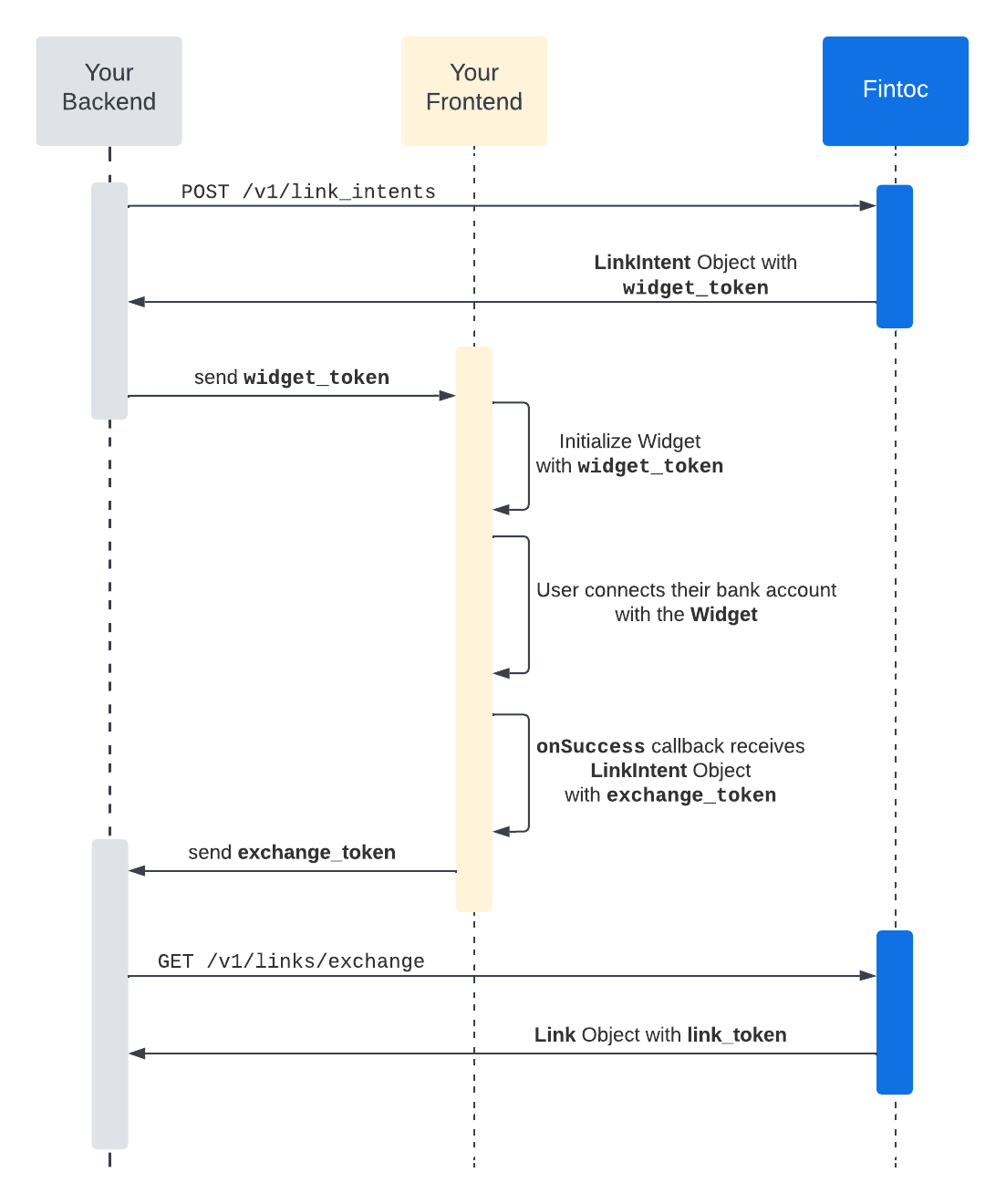 So, putting it into words:
1. You need to **create a[Link Intent](/api/movements-api/linkintents/link-intent-object)** resource with the [create endpoint](/api/movements-api/linkintents/link-intents-create). This object represents the connection intent of the user and receives all configurations needed to open the Widget in your frontend.\
In order to correctly update the movements in your bank account, make sure the account used to create the Link has the necessary permissions to review the balance and movements page, the historical statement, the provisional statement, and any other movement-related pages. To connect an account in Test Mode, see our [testing guide](/guides/movements/data-aggregation-test-your-integration).
2. The Link Intent resource you just created has a field named `widget_token`. You need to open the Widget in your frontend using this token and the public [API Key](/guides/home/api-keys):
```html theme={null}
```
3. Once the connection is succeeded, you will receive the Link Intent object as a parameter in your `onSuccess` callback. This object now will have the `exchange_token`. This is a temporary key that allows you to retrieve the Link information, including the `link_token`, so then you can access all information provided by your user:
```html theme={null}
```
4. **From your backend**, use the `exchangeToken` and your secret key to get the Link information using the [exchange endpoint](/api/movements-api/links/links-exchange).
And that's it.
So, putting it into words:
1. You need to **create a[Link Intent](/api/movements-api/linkintents/link-intent-object)** resource with the [create endpoint](/api/movements-api/linkintents/link-intents-create). This object represents the connection intent of the user and receives all configurations needed to open the Widget in your frontend.\
In order to correctly update the movements in your bank account, make sure the account used to create the Link has the necessary permissions to review the balance and movements page, the historical statement, the provisional statement, and any other movement-related pages. To connect an account in Test Mode, see our [testing guide](/guides/movements/data-aggregation-test-your-integration).
2. The Link Intent resource you just created has a field named `widget_token`. You need to open the Widget in your frontend using this token and the public [API Key](/guides/home/api-keys):
```html theme={null}
```
3. Once the connection is succeeded, you will receive the Link Intent object as a parameter in your `onSuccess` callback. This object now will have the `exchange_token`. This is a temporary key that allows you to retrieve the Link information, including the `link_token`, so then you can access all information provided by your user:
```html theme={null}
```
4. **From your backend**, use the `exchangeToken` and your secret key to get the Link information using the [exchange endpoint](/api/movements-api/links/links-exchange).
And that's it.