> ## Documentation Index
> Fetch the complete documentation index at: https://docs.fintoc.com/llms.txt
> Use this file to discover all available pages before exploring further.
# Create a banking Link from the dashboard
If you need to create a new banking Link to use within your application, head over to [the dashboard](https://dashboard.fintoc.com/).
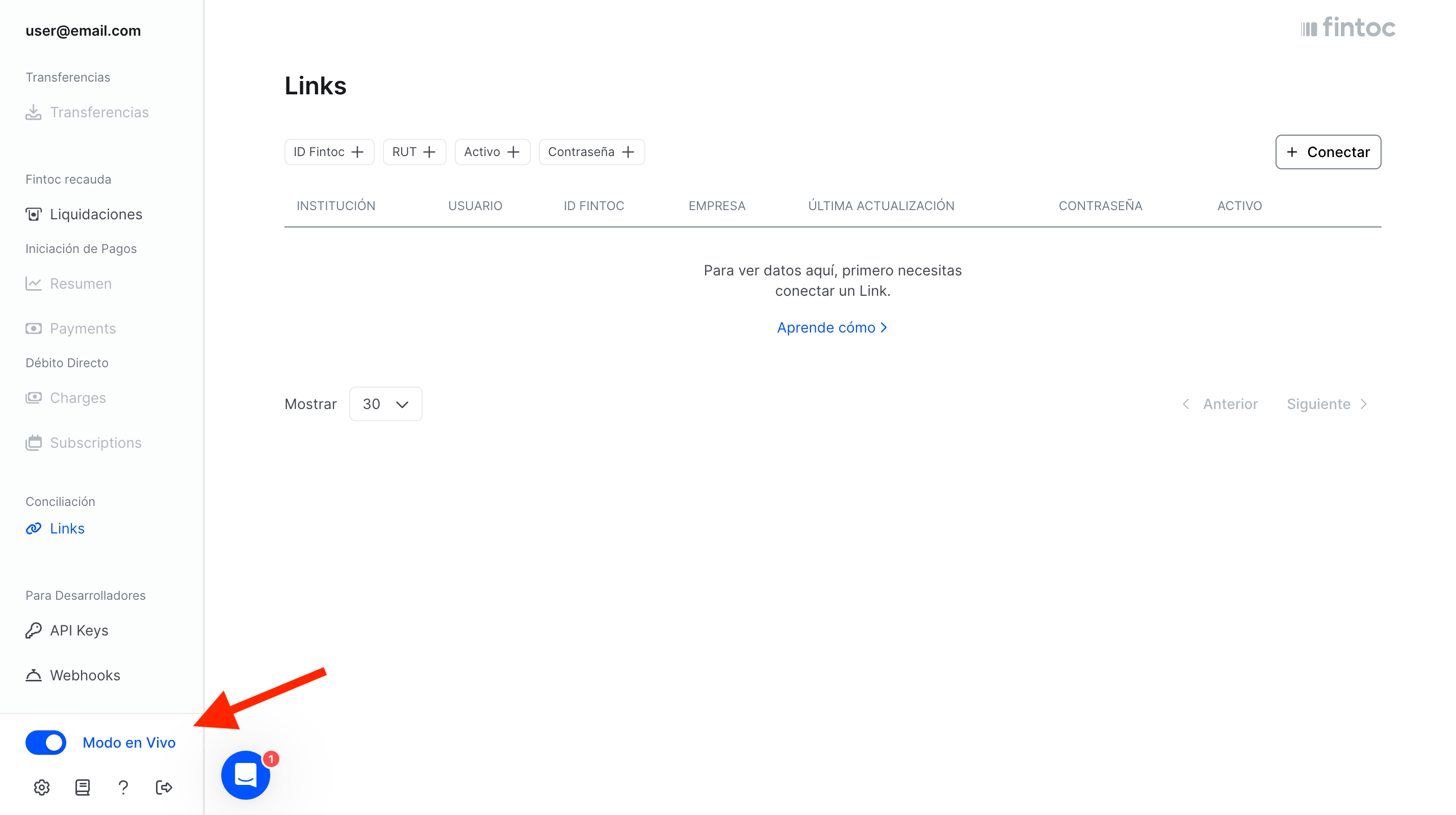
First, make sure you're looking at the dashboard using the **Live Mode**:
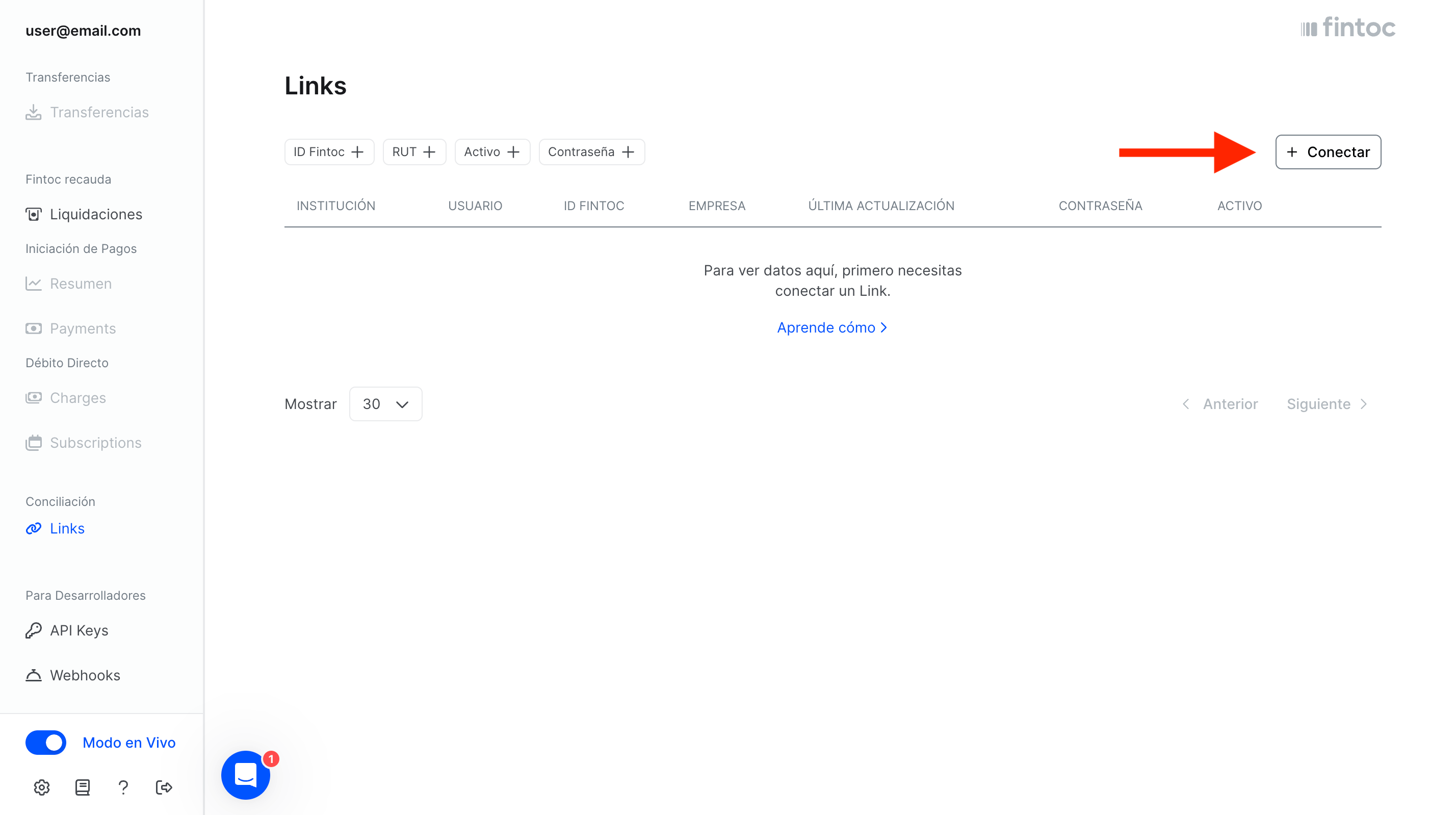
 Now, click on the button to create a new link (for this example we will create a personal link, but creating a business link works exactly the same):
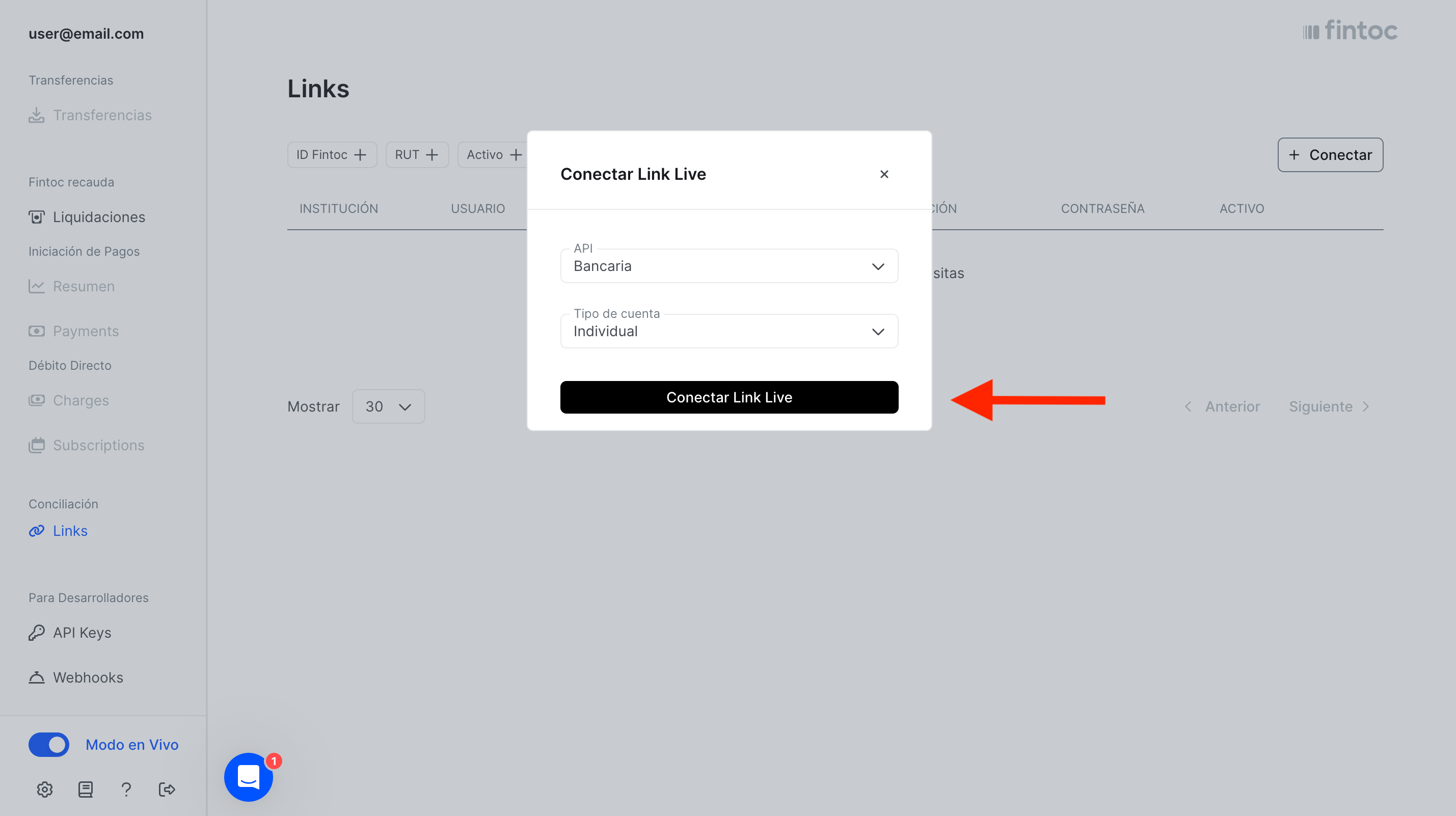
 After clicking the create button, a modal will open. Here you can choose the country for the link and the type of link (we will create a Chilean, Banking, Individual Link). After selecting the options, click the creation button:
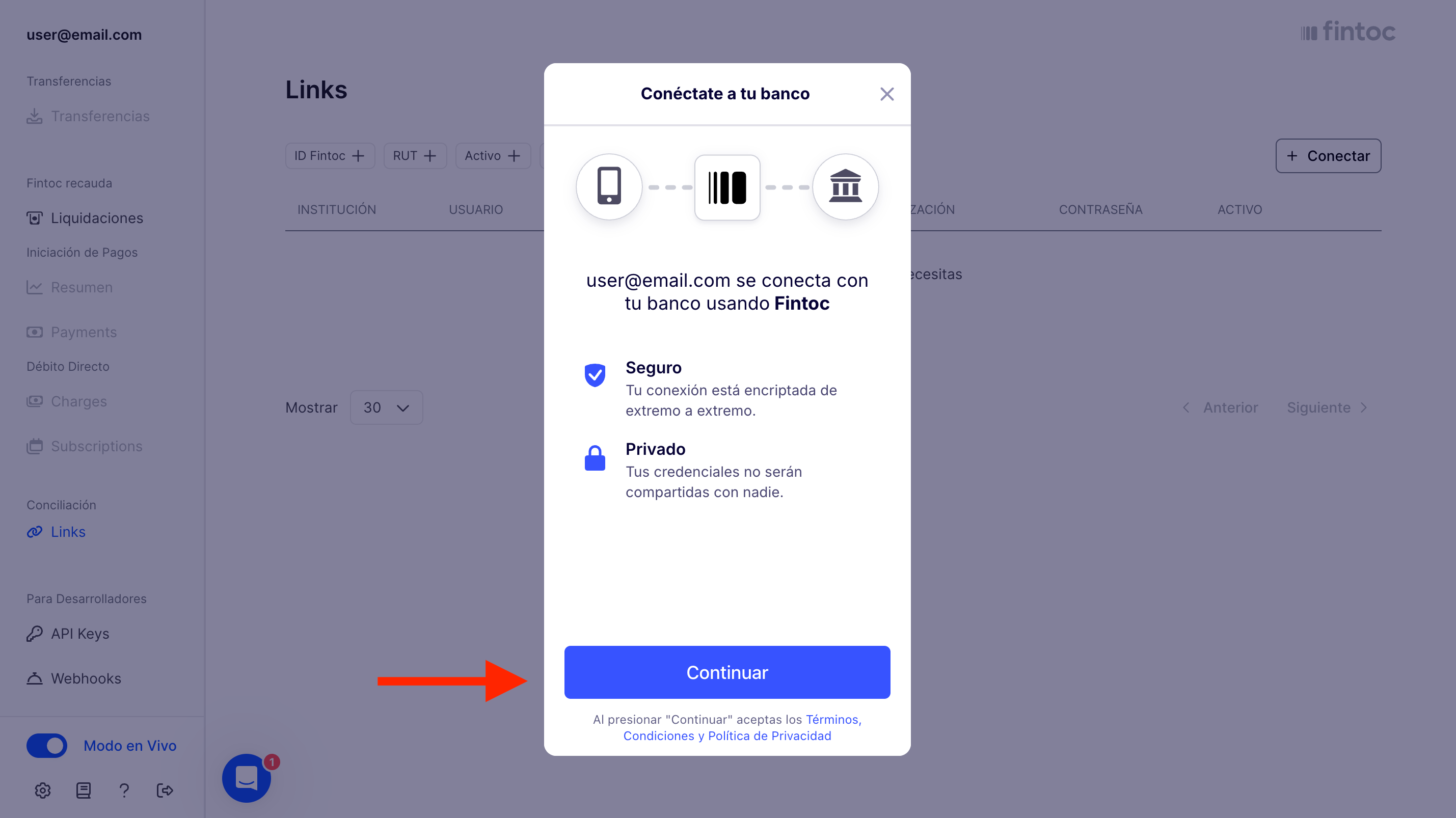
 This will open the Fintoc widget. Click on the "*Continue*" button:
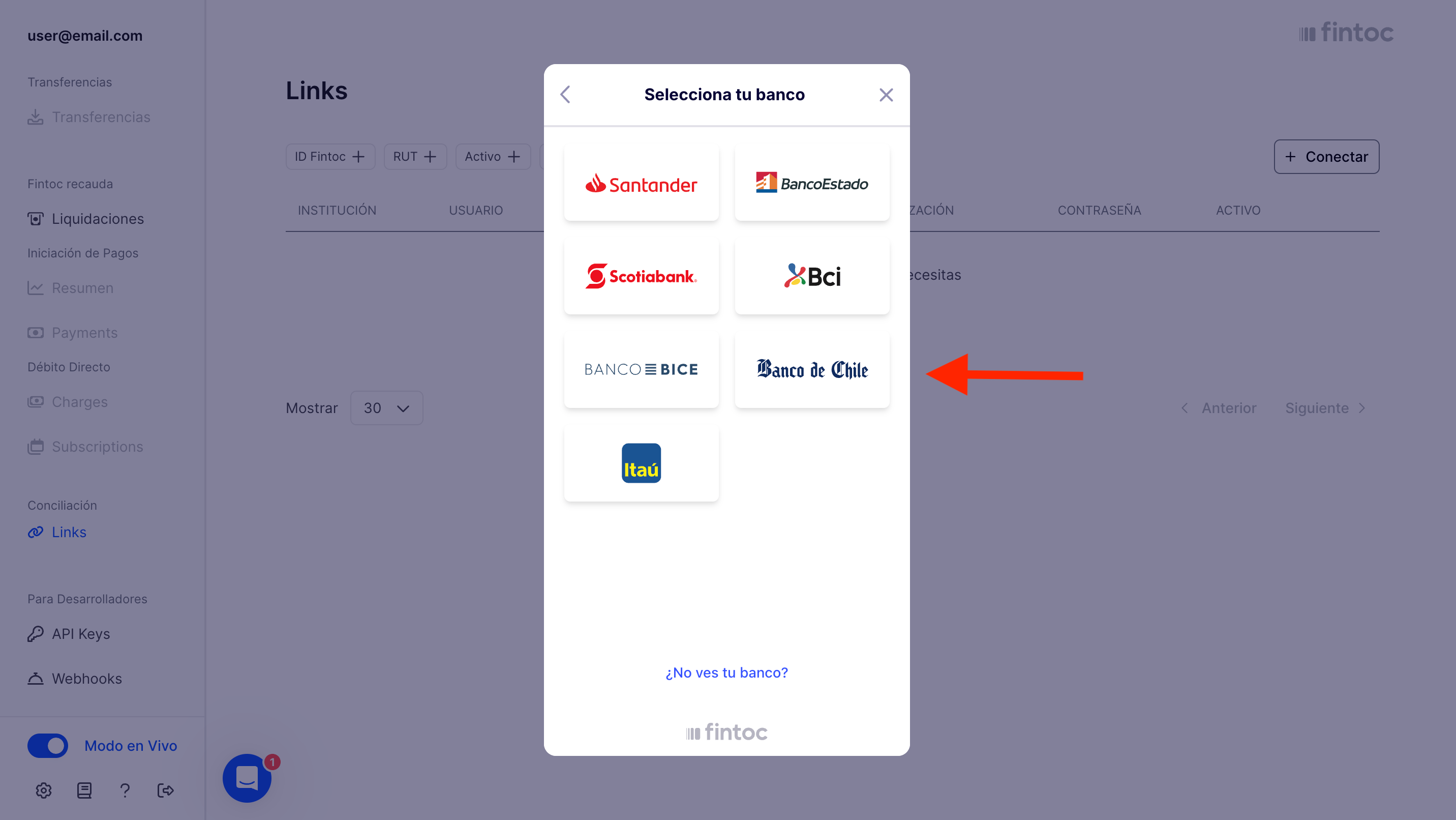
 Click on the bank that has the account to which you want to associate a Link:
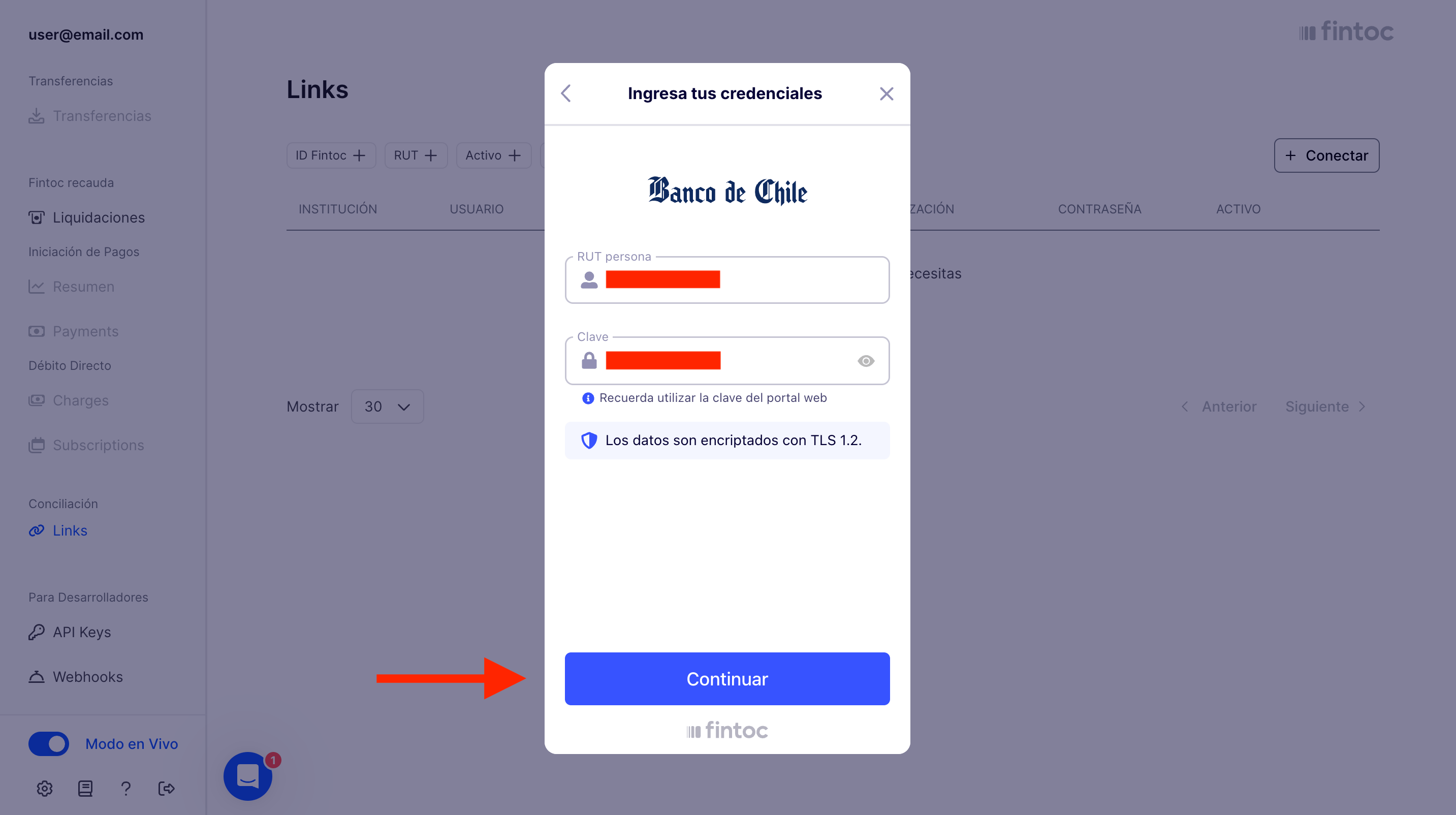
 Fill your bank credentials and click the "*Continue*" button:
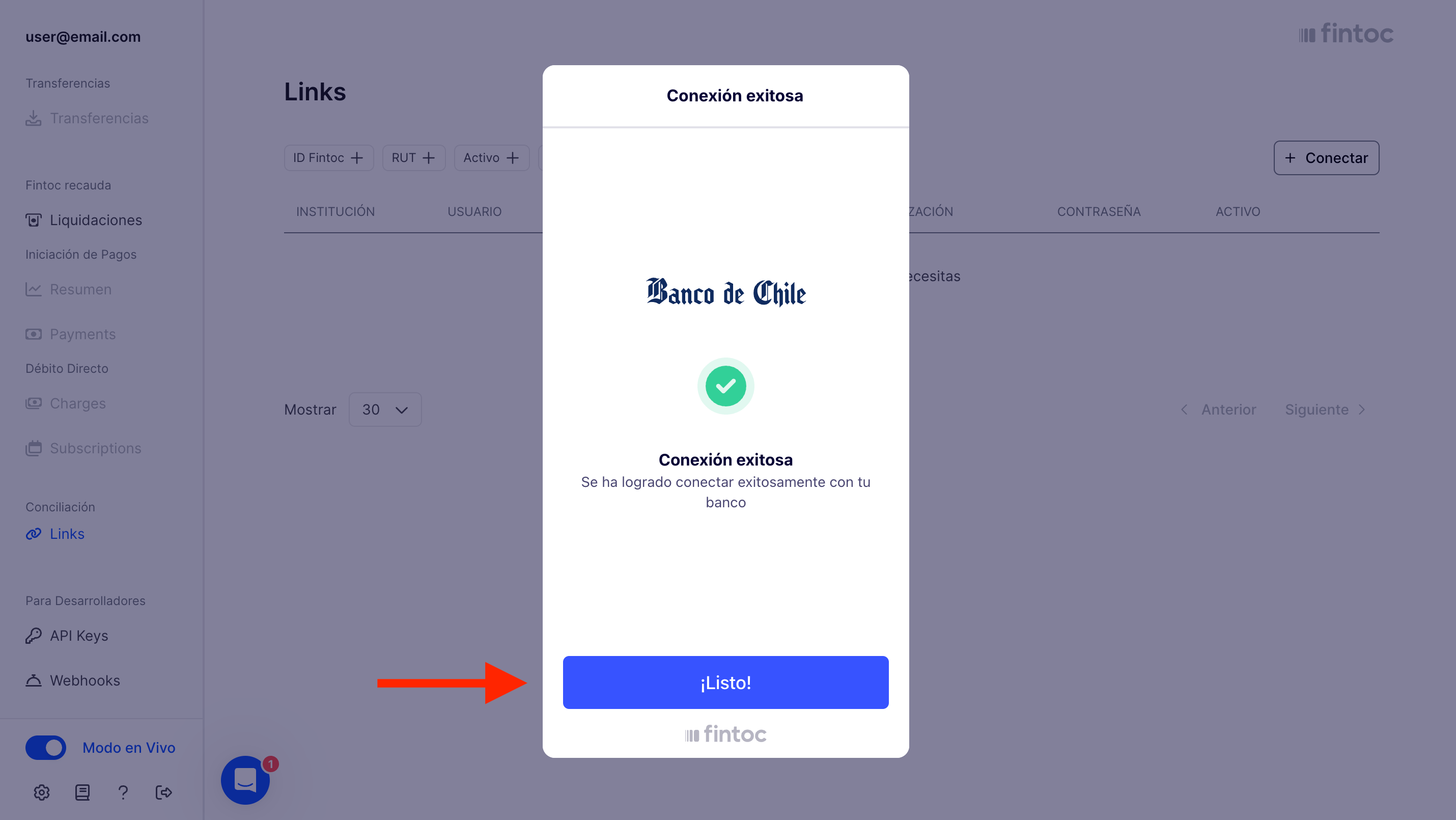
 After waiting for Fintoc to successfully create and connect your Link, a final view of the Fintoc widget will be shown. Click the "*Finish*" button:
 Finally, a modal will open:
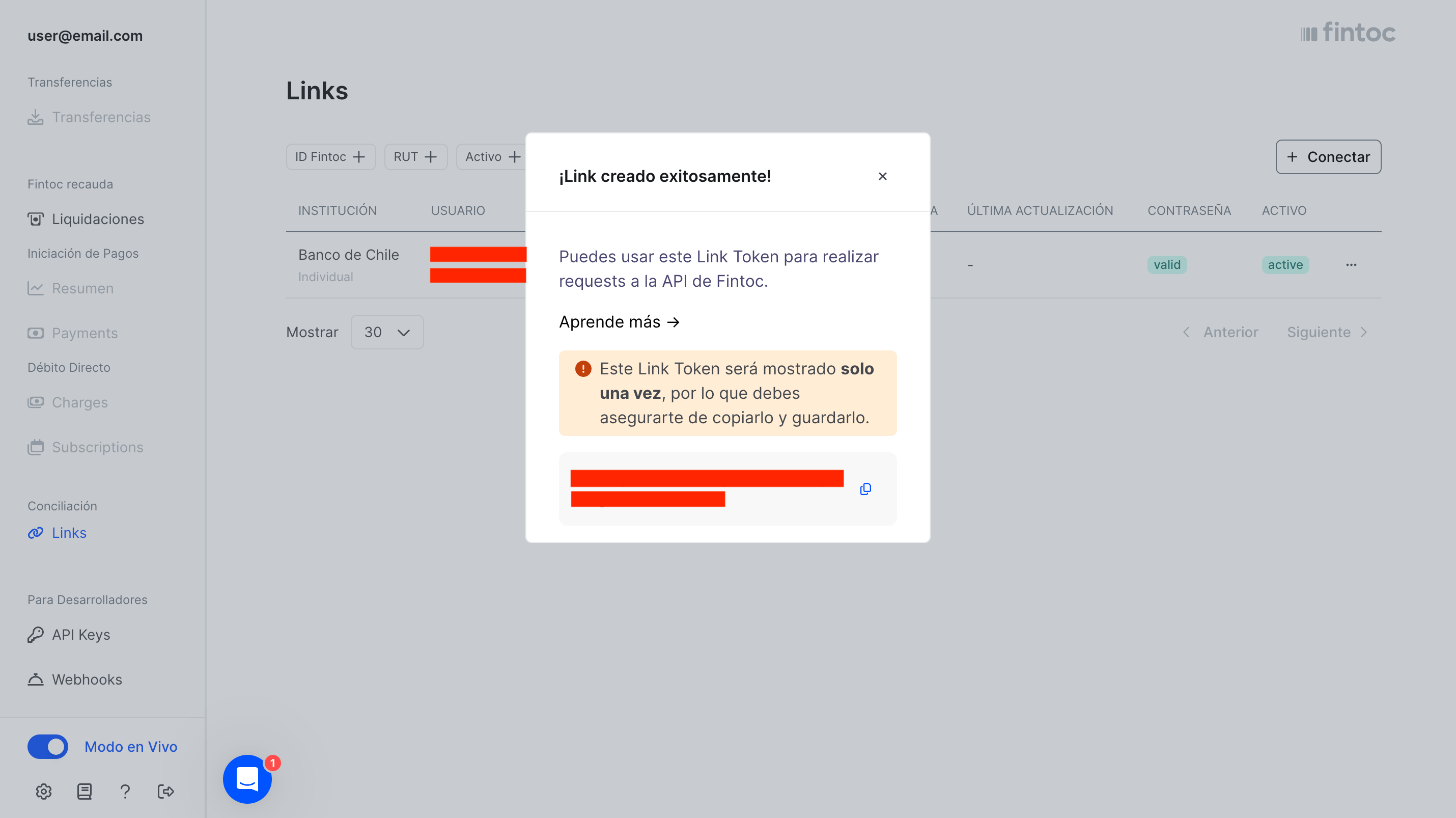 Notice the Link Token at the end of the modal. **Save that token securely**. The Link Token represents the username/password combination of the bank, and is used to ask Fintoc for the bank data. **The Link Token is not saved by Fintoc, and can never be retrieved again**, so **don't lose it**.