

Prerequisites
Before you start, you need:- A Fintoc account with API credentials (Secret Key and Webhook Secret).
- Admin access to your Magento 2 store.
- Developer access (if you need to install or update the module).
Getting Started: Credentials and Setup
1. Sign Up
To initiate the process, head to Fintoc’s dashboard and sign up. To start receiving payments in Live mode, fill out your information to facilitate account activation and provide you with the necessary credentials.2. Obtain API Keys
Within your Fintoc dashboard, you will find both Test and Live API Keys. You should use your Live API Keys to setup Fintoc within Magento. To get your Live API Keys, make sure you are in Live mode by checking the button on the top left of our dashboard. Then, head over to For Developers → API Keys to obtain them.Integration and Configuration Process
Installation (if not preinstalled)
Ensure the module is installed and enabled by your developer or partner.- Example (for developers):
- composer require fintoc/module-payment
- bin/magento module:enable Fintoc_Payment
- bin/magento setup:upgrade
- bin/magento cache:flush
Enabling the Plugin in Your Magento Store
- Log in to your Magento Admin panel.
-
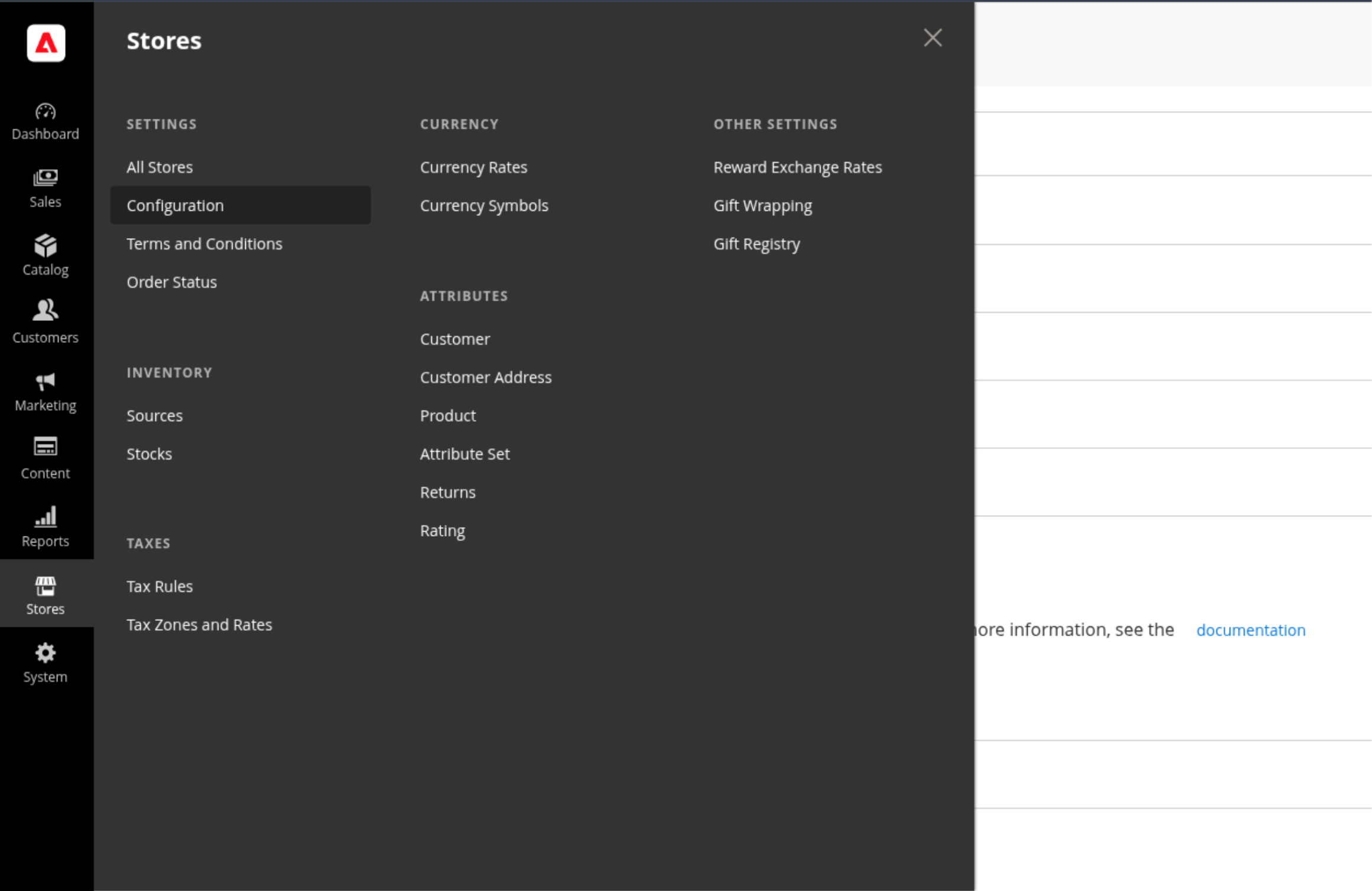
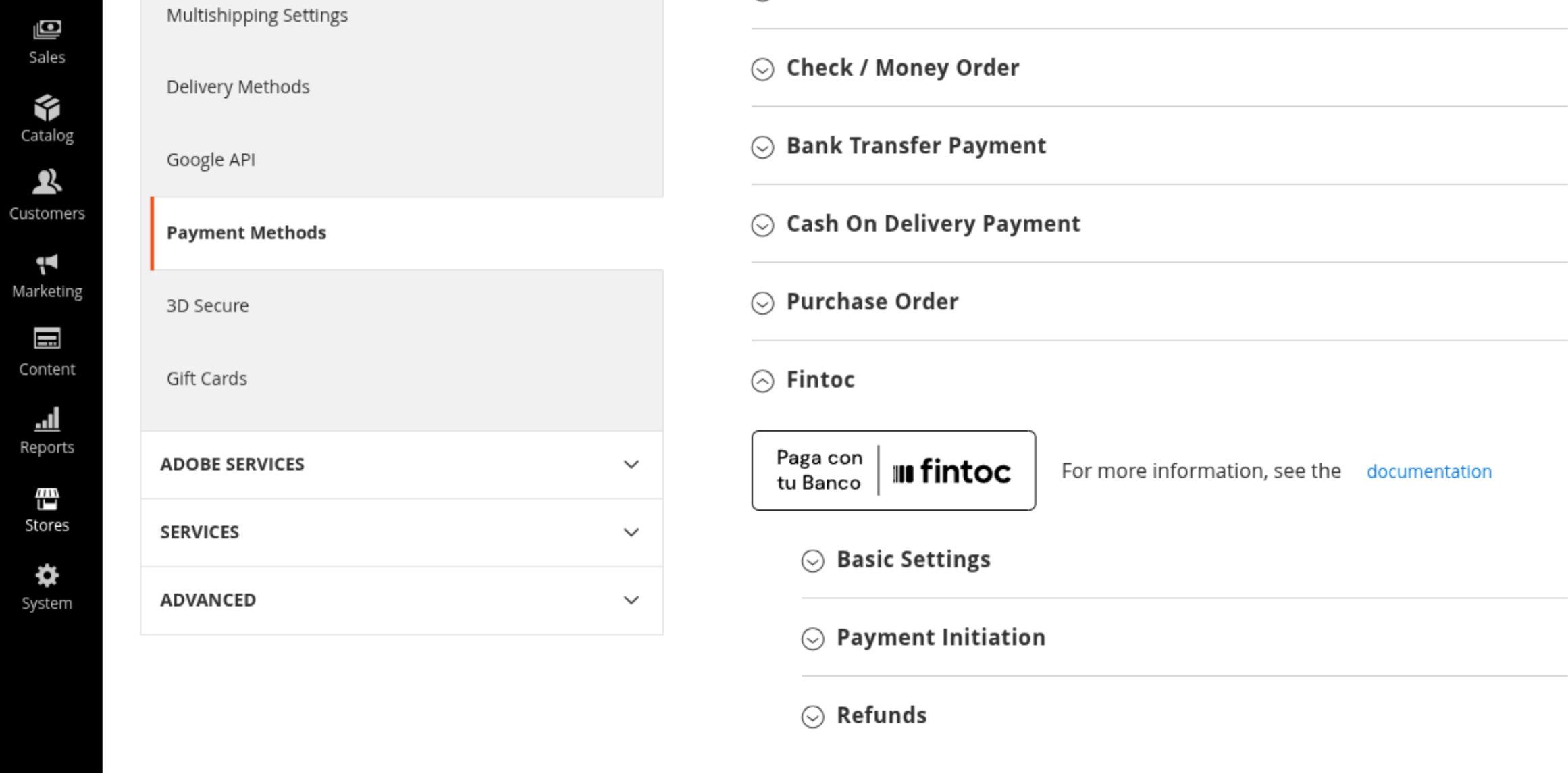
Go to Stores → Configuration → Sales → Payment Methods → Fintoc.
-
In Basic Settings, enter:
- Secret API Key (from the Fintoc Dashboard)
- Webhook Secret (from the Fintoc Dashboard, this is explained in the next section.)
- (Optional) Adjust logging and debug settings: Enable Logging, Debug Mode, set Debug Level, and toggle Log Sensitive Data
-
In Payment Initiation, configure:
- Enabled: Yes
- Title: Display name (e.g. Pay with Fintoc)
- Automatically Invoice All Items (optional)
- New Order Status: usually Pending or Processing depending on your invoicing policy
- Applicable Countries: all or selected
- Maximum Order Amount (optional)
- Sort Order (checkout display order)
-
In Refunds (optional):
- Enable Refunds and Partial Refunds
- Enable Auto-create Credit Memo
- Define status transitions for Refund events (Pending, Succeeded, Failed, Canceled)
- Click Save Config, then clear caches if prompted.
Managing Magento’s Admin
For transactions-
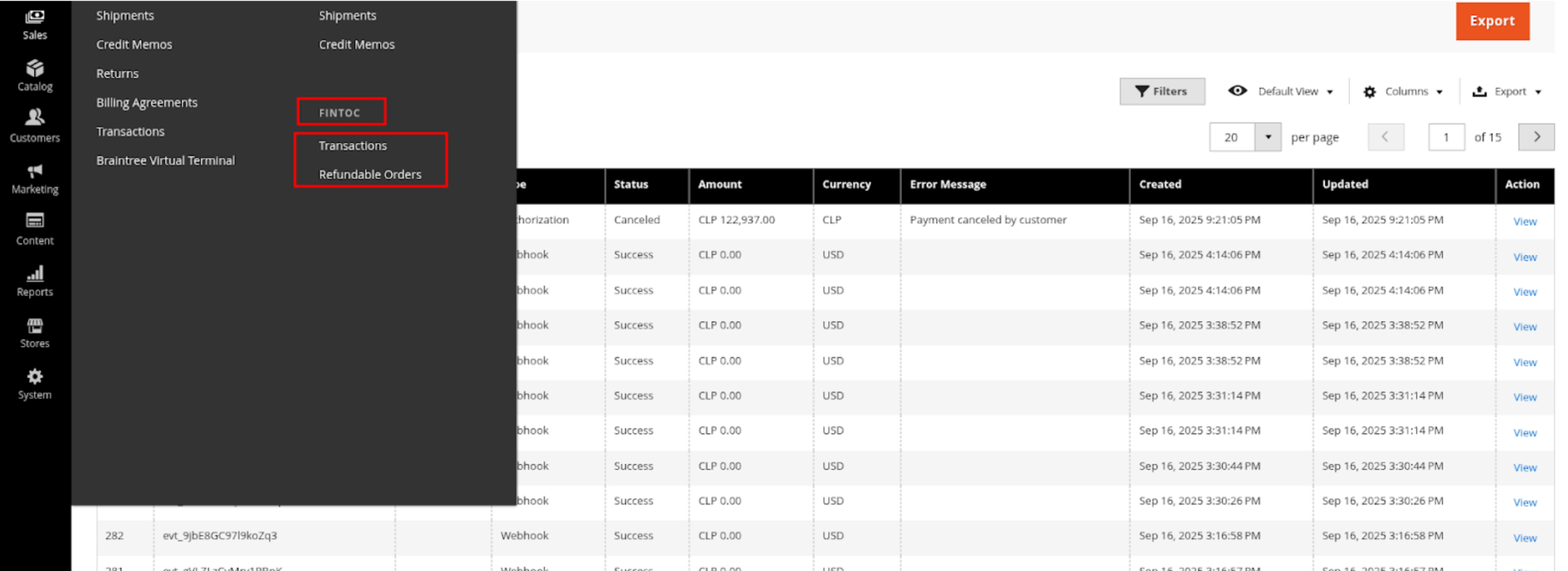
Go to Sales → Fintoc → Transactions in the Magento Admin.
-
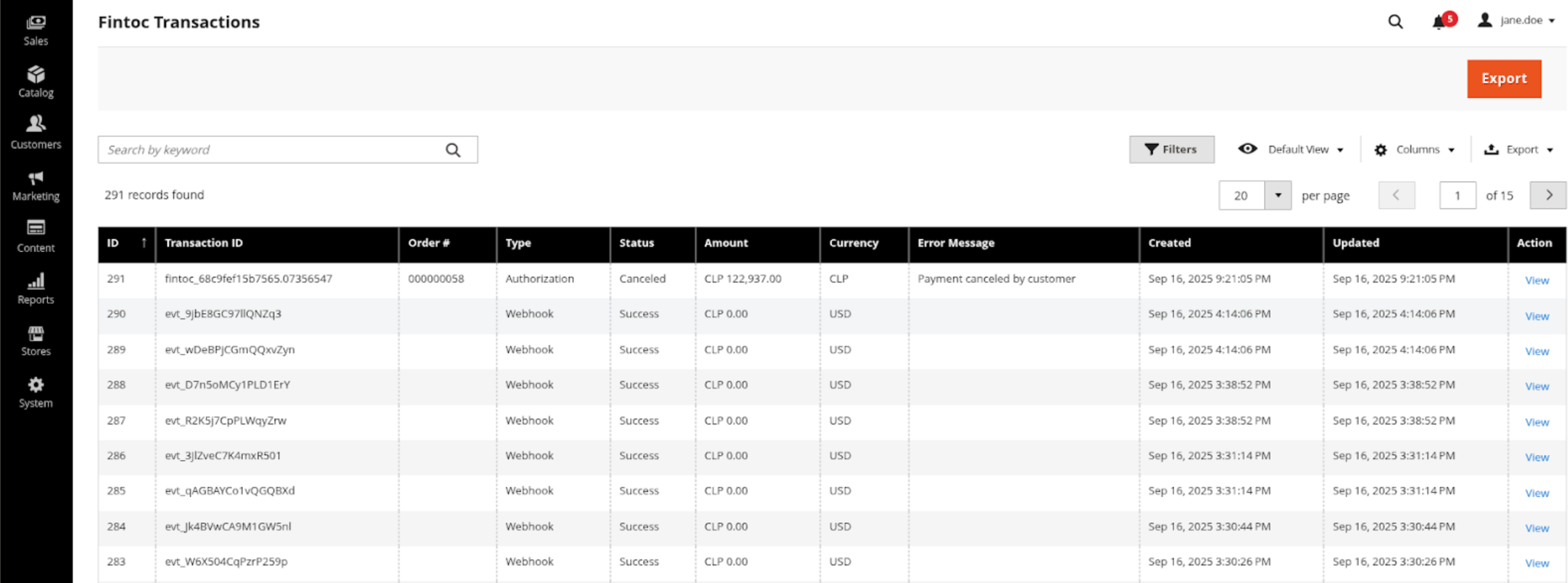
Use filters to search by order or transaction ID.
-
Click any transaction to view details and webhook logs.
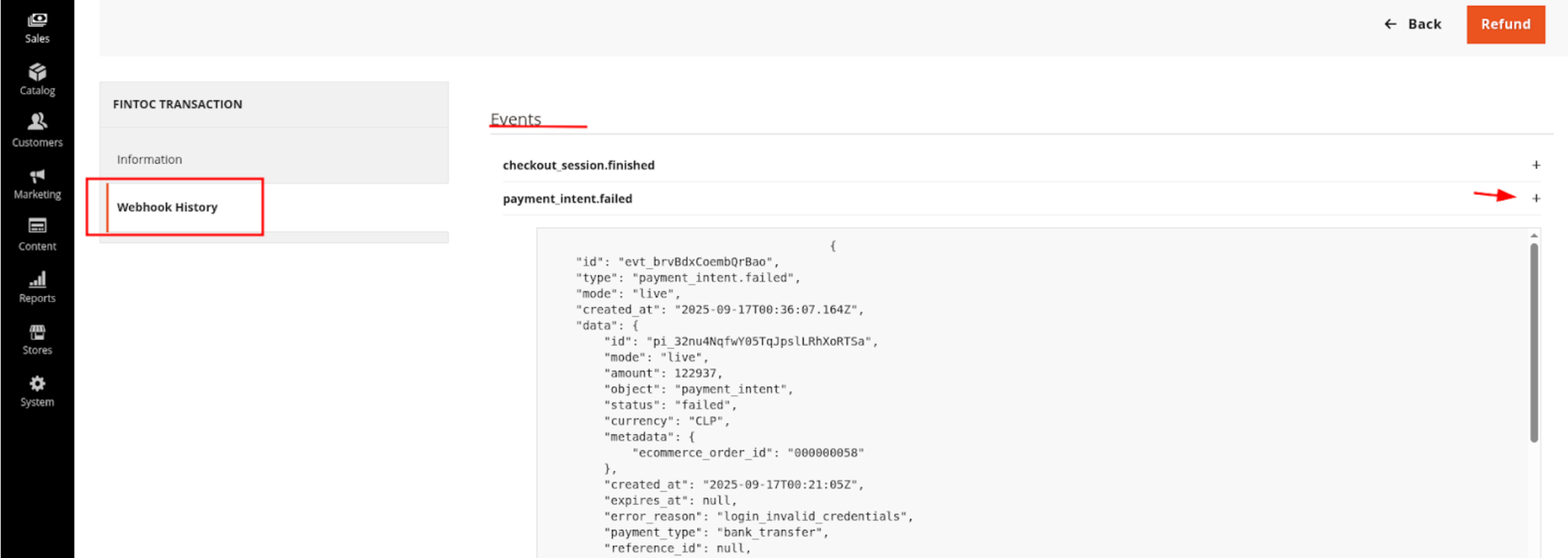
-
Go to Sales → Fintoc → Refundable Orders, open the refund form, and submit.
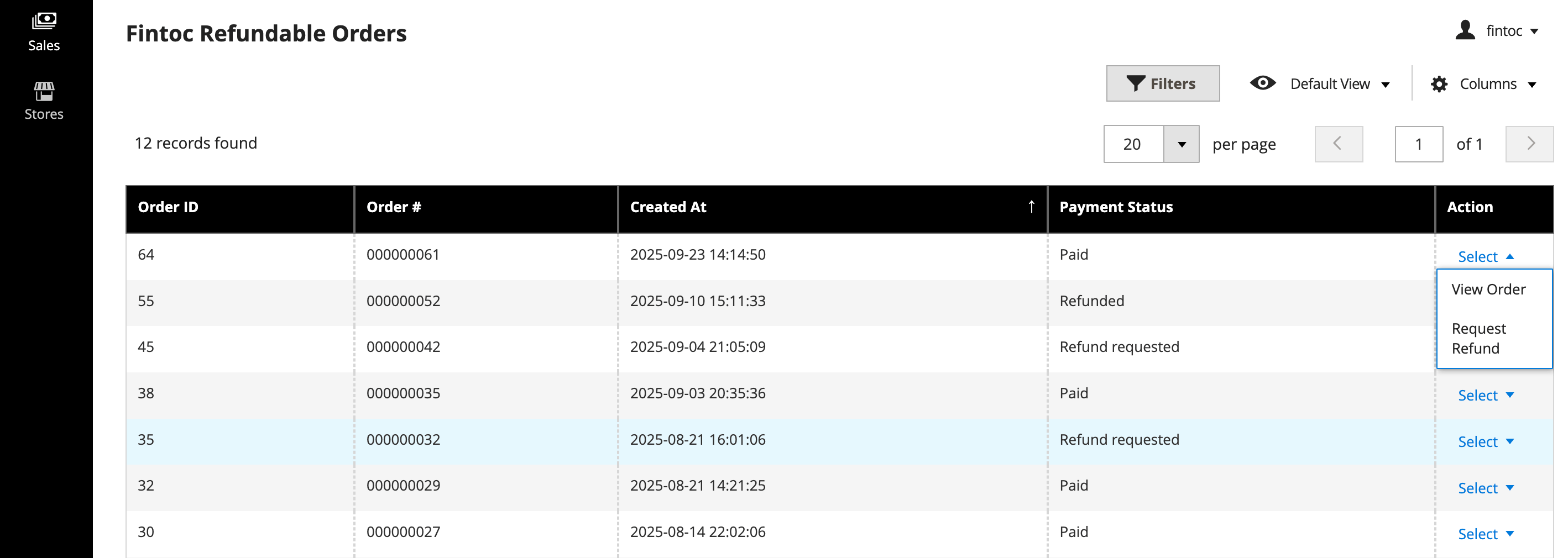
- Or use the standard Credit Memo flow if configured.
Webhook setup
To keep payment statuses synchronized:-
In your Fintoc Dashboard, create a new webhook.
- Set the URL to
{STORE_URL}/fintoc/webhook - Method
POST
- Set the URL to
- Copy the Webhook Secret and paste it into your Magento Fintoc settings (Stores → Configuration → Sales → Payment Methods → Fintoc → Basic Settings → Webhook Secret).
-
Test delivery in Fintoc and verify Magento responds with 200 OK.
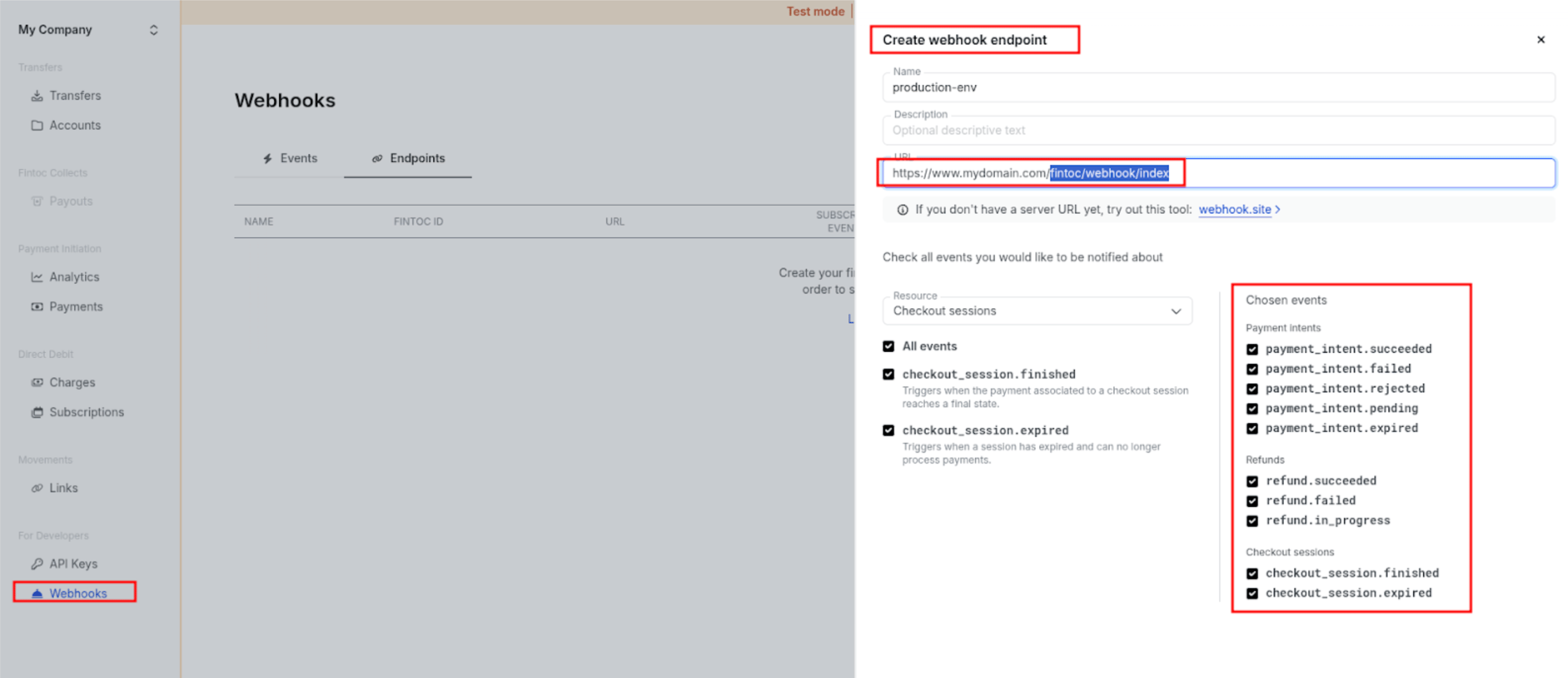
Best practices
- Keep logging enabled in production at a reasonable Debug Level. Avoid logging sensitive data unless requested by support.
- Verify that your server is publicly reachable by Fintoc for webhooks (firewalls, maintenance mode, IP allowlists).
- If customers report missing payment method, check country restrictions and maximum order amount settings.
Troubleshooting
Here are some issues you might encounter and how to solve them.Support
- Provide recent entries from var/log/fintoc*.log when contacting support.
- Share the order increment ID and (if available) the Fintoc transaction_id for faster diagnosis.
Testing
- In Fintoc’s app, switch to Test mode by using the checkbox to test payments without affecting live orders.
- Place test orders to ensure that payments are processed correctly. For more information on testing, refer to our testing guidelines.
Go Live
- Once you’re satisfied with testing, switch the app to Live or Production mode by unchecking the checkbox.
- Test a few more orders in the live environment to ensure everything is functioning as expected.