

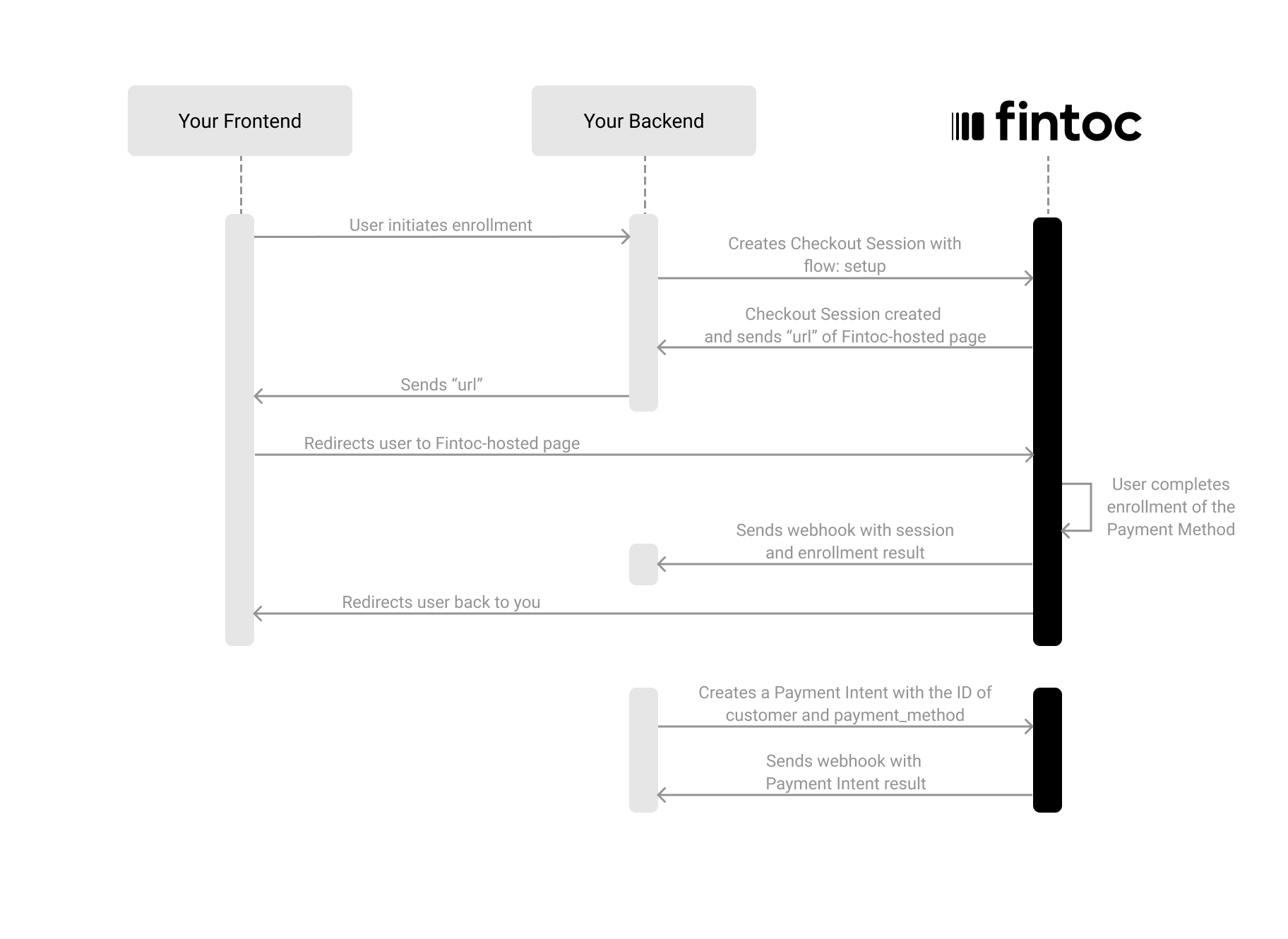
- On your backend, create a Checkout Session with
flow: setup. - Redirect your customer to complete the enrollment at the Fintoc-hosted checkout page.
- Handle post-session events to save the
payment_methodandcustomer. - Charge the saved payment method on demand, by creating an invoice or a Payment Intent.
Create a Checkout Session
The Checkout Session with thesetup flow represents your intent to save a payment method for future charges, without creating a recurring subscription.
Using your Secret Key, create a Checkout Session on your backend with flow set to setup:
Server
Node
redirect_url:
Difference from the subscription flowWhen you create a Checkout Session with
flow: setup, Fintoc enrolls the customer’s payment method and creates a PaymentMethod, but does not create a subscription or schedule any recurring charges. You control when and how much to charge by creating future payment intents.Include customer data
When creating a Checkout Session for setup, you must include customer information.Redirect the customer to complete the enrollment
Next, redirect the customer to theredirect_url from the response. The customer sees the Fintoc-hosted checkout page where they complete the enrollment.
After the customer completes the enrollment, Fintoc automatically redirects them to your success_url or cancel_url, depending on the outcome.
Client
Handle post-session events
Always use webhooks to determine the final outcome. Customers may close the tab, lose connection, or never reach yoursuccess_url.
Checkout Session events
When the enrollment completes, Fintoc sends acheckout_session.finished event with the customer and payment_method information:
Payment Method events
Fintoc also sends apayment_method.activated event. The event’s data field contains a PaymentMethod like this:
customer ID and the payment_method ID. You need them to create charges later.
Events summary
You should subscribe to all the following post-session events:Create a charge against the saved payment method
Once the payment method isactive, you can charge it in two ways:
- Create an invoice and let Fintoc collect it. The invoice records what your customer owes, keeps the history of every charge attempt, and gives you a payment link to fall back on. Use it when the charge settles a debt, including recurring collection.
- Create a Payment Intent directly. Use it for a one-off charge that you don’t need to track as a debt.
payment_intent. The difference is where the payment_intent lives: a charge made through an invoice stays anchored to the invoice, so you can retry it, switch payment methods, and reconcile it against the amount owed.
Charge the payment method through an invoice
Collecting an invoice takes two calls: you create the invoice, and then you finalize it. Fintoc never finalizes an invoice you create yourself.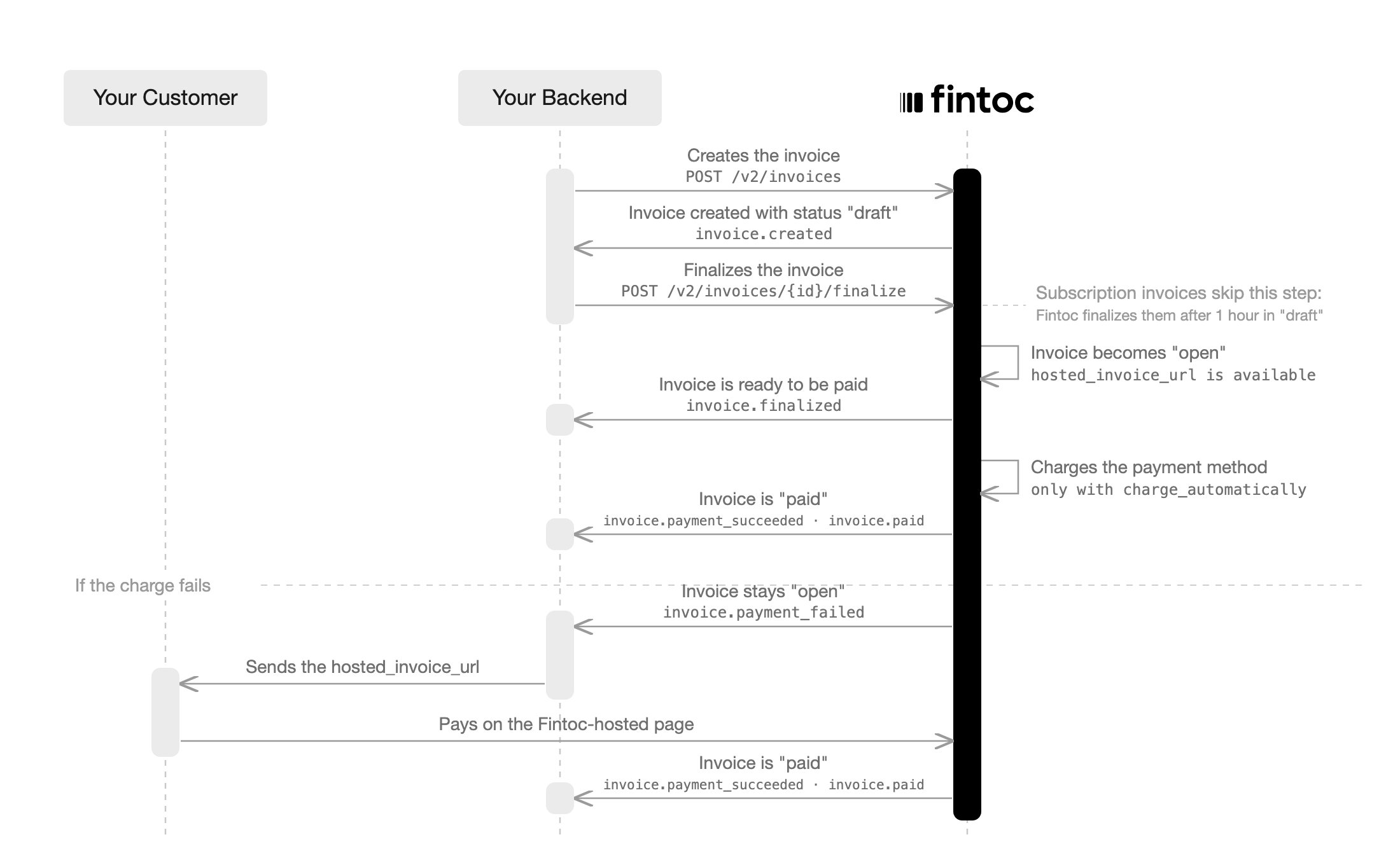
1) Create the invoice
Create the Invoice for thecustomer, with default_payment_method set to the payment method you saved.
Fintoc’s Node and Python libraries don’t create invoices. Call the Create an invoice endpoint over HTTP, as in this curl example.
Server
curl
Fintoc responds with the invoice in
draft status:
draft invoice charges nothing. Use the draft status to review the amount or change the items with Add lines and Update a line item before you collect.
2) Finalize the invoice to charge it
Finalize the invoice to move it toopen. Because collection_method is charge_automatically, Fintoc charges default_payment_method after finalization:
Server
open with a pending payment until the payment resolves. Track the outcome with invoice.payment_succeeded or invoice.payment_failed; Fintoc sends those invoice events alongside payment_intent.succeeded or payment_intent.failed.
3) Retry a failed charge
A failed charge leaves the invoiceopen, so the amount your customer owes stays open on the invoice. Retry the charge with Pay an invoice, against the same payment method or against another active payment method of the same customer:
Server
payment_method to charge the invoice’s default_payment_method. Fintoc appends every attempt to the invoice’s payments array with its own payment_intent and status, so the invoice holds the full history of how you tried to collect it.
To settle an invoice you collected outside Fintoc, by bank transfer or in cash, call the same endpoint with external_payment set to true. Fintoc moves the invoice to paid without charging anything, and reports external_payment as true.
Collect the invoice without charging the saved method
To let your customer pay instead of charging them, create the invoice withcollection_method set to send_invoice. Fintoc then leaves the invoice open when you finalize it, instead of charging it, and default_payment_method becomes optional:
Server
open. Once the invoice reaches open, its hosted_invoice_url points to a Fintoc-hosted payment page. Your customer can pay there with the payment methods enabled on your organization’s account, without needing a saved payment method. Send that link to your customer through your own channel, such as email or WhatsApp. Fintoc does not contact your customer through any channel.
Handle invoice events
Subscribe to the following events to track the invoice:Charge the payment method with a Payment Intent
Charge the savedpayment_method directly by creating a Payment Intent with the payment_method ID:
Server
Node
Fintoc responds with the created Payment Intent:
Handle payment events
Fintoc sends these events for every charge, whether you created the charge through an invoice or as a standalone Payment Intent. Subscribe to them to track the payment outcome:Test your integration
Using your test mode API Secret Key, create Checkout Sessions that simulate the full setup and payment flow without moving any money.1) Create a setup Checkout Session using test credentials
Create a Checkout Session withflow: setup using your test mode Secret Key. Complete the enrollment flow on the Fintoc-hosted page using the following credentials:
Test credentials:
PAC
- Username (RUT):
41.579.263-8 - Password:
jonsnow
Card
Use these test cards for card setup flows in Chile:2) Verify the saved payment method
After completing the test enrollment, you should receive thecheckout_session.finished and payment_method.activated webhook events. Verify that:
- The
payment_methodID is present in the event payload. - The
customerID matches the customer you enrolled.
3) Create a test charge against the saved method
Using thecustomer and payment_method IDs from step 2, create a Payment Intent against the saved method. Verify that:
- You receive the
payment_intent.succeededevent. - The amount matches what you sent.
- The payment method used is the saved PAC or card.
default_payment_method set to the saved method, finalize it, and verify that:
- You receive
invoice.created,invoice.finalized,invoice.payment_created,invoice.payment_succeeded, andinvoice.paid, along withpayment_intent.succeeded. - The invoice ends in
paidstatus, with the attempt recorded inpaymentsand yourmetadatapersisted.
To save a Mexican bank account or debit card in
test mode, follow Accept direct debit payments in Mexico.