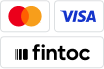
Use these guidelines to present Fintoc’s bank transfer and card payment options in a Chilean checkout.Accepted terminology:Paga con tu banco or Tarjeta de crédito o débitoSupporting images: A combination of Chilean bank logos for Paga con tu banco and Visa and Mastercard logos for Tarjeta de crédito o débitoReference Fintoc assets directly with the provided URLs. For example:
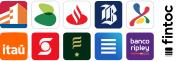
When your checkout has enough space, combine the bank logos with the full Fintoc logo. Fintoc provides a single asset for this combination. Label the payment method Paga con tu banco.
Choose a combination asset from the following table:
In Chile, Fintoc lets you preselect a bank. See the widget guide to enable bank preselection.Our recommendation depends on your checkout screen:
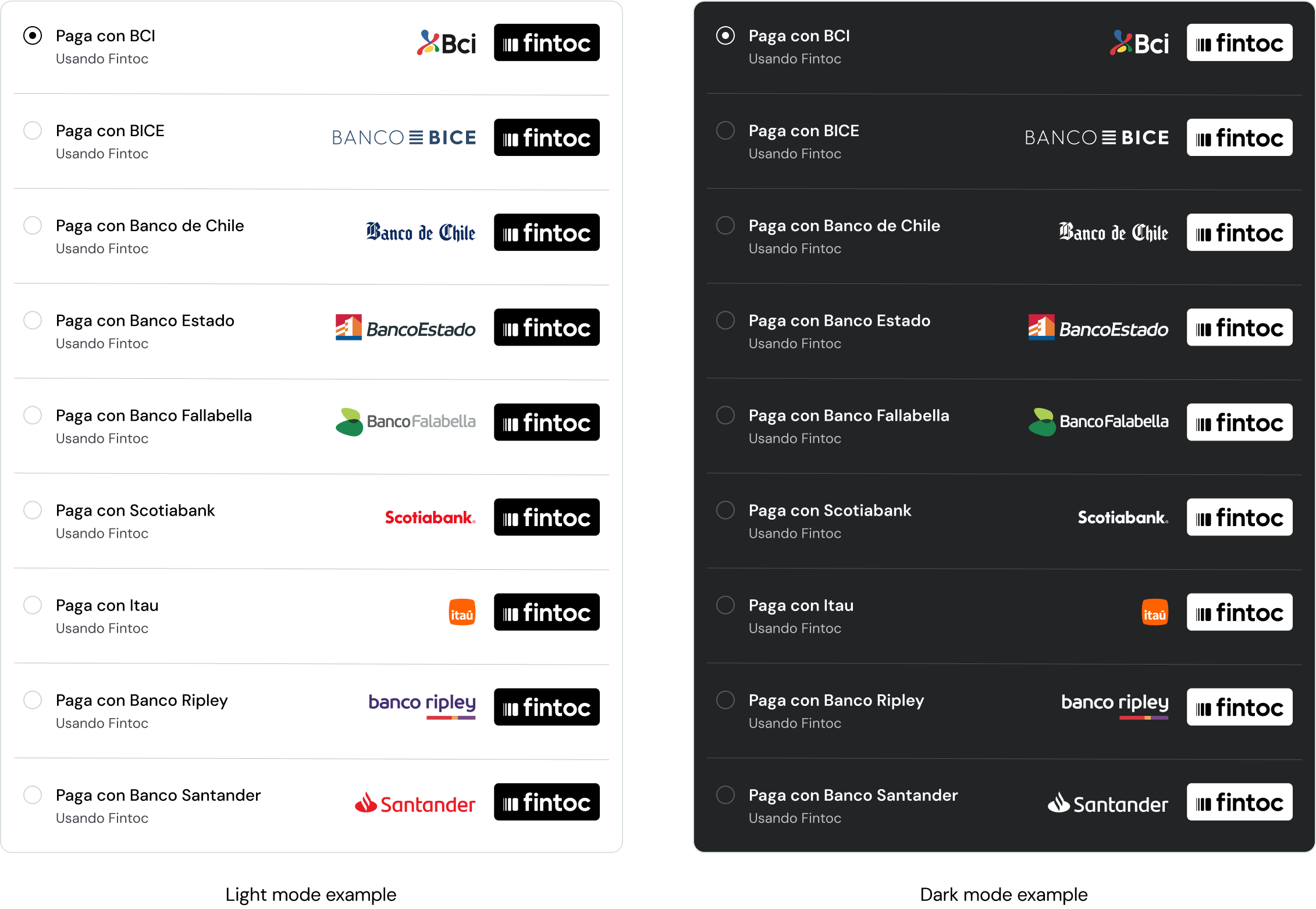
If Fintoc is your only payment method in Chile: Place individual bank buttons outside the widget.
If Fintoc is one of multiple payment methods in Chile: Place buttons for up to two of your users’ most-used banks outside the widget. Place a general Fintoc button with the other payment methods. This gives users direct access to the banks they select most.
Choose an individual bank asset from the following table:
You can prefill payment information, such as a user’s Chilean tax ID (RUT), when you already have it. You can make the prefilled information editable or read-only. Prefilling this information reduces checkout steps and can help you meet requirements for identifying the payer.
See the widget guide to prefill the username field.
Do not redirect users to a new page when opening the widget. Keep users in your app or website, and open the widget as an overlay on the current screen.
Do not repeat interface elements that the widget already provides. The widget includes its own navigation, so additional navigation duplicates controls and adds clutter.
Fintoc handles recoverable errors within the widget. Handle terminal payment failures in your integration so users can retry the payment. Failed payments include an error_reason that identifies the cause.For a failed payment, tell users that no money moved and prompt them to retry after correcting the issue.
When a payment succeeds, show users what happens next in your website or app. Use the confirmation that matches your payment flow:
Peer-to-peer transfers: Confirm that the money was sent and show the updated account balance.
Fintech wallets and investments: Show the account screen with the updated balance.
E-commerce: Show a confirmation screen with the amount paid, billing information, products purchased, address, and delivery date when applicable. Include any additional instructions for receiving the product.
Was this page helpful?
Assistant
Responses are generated using AI and may contain mistakes.