

- On your backend, create a
Checkout Sessionwithflow: subscription. - Redirect the customer to complete the enrollment at the Fintoc-hosted checkout page.
- Handle post-enrollment and recurring payment events (webhooks).
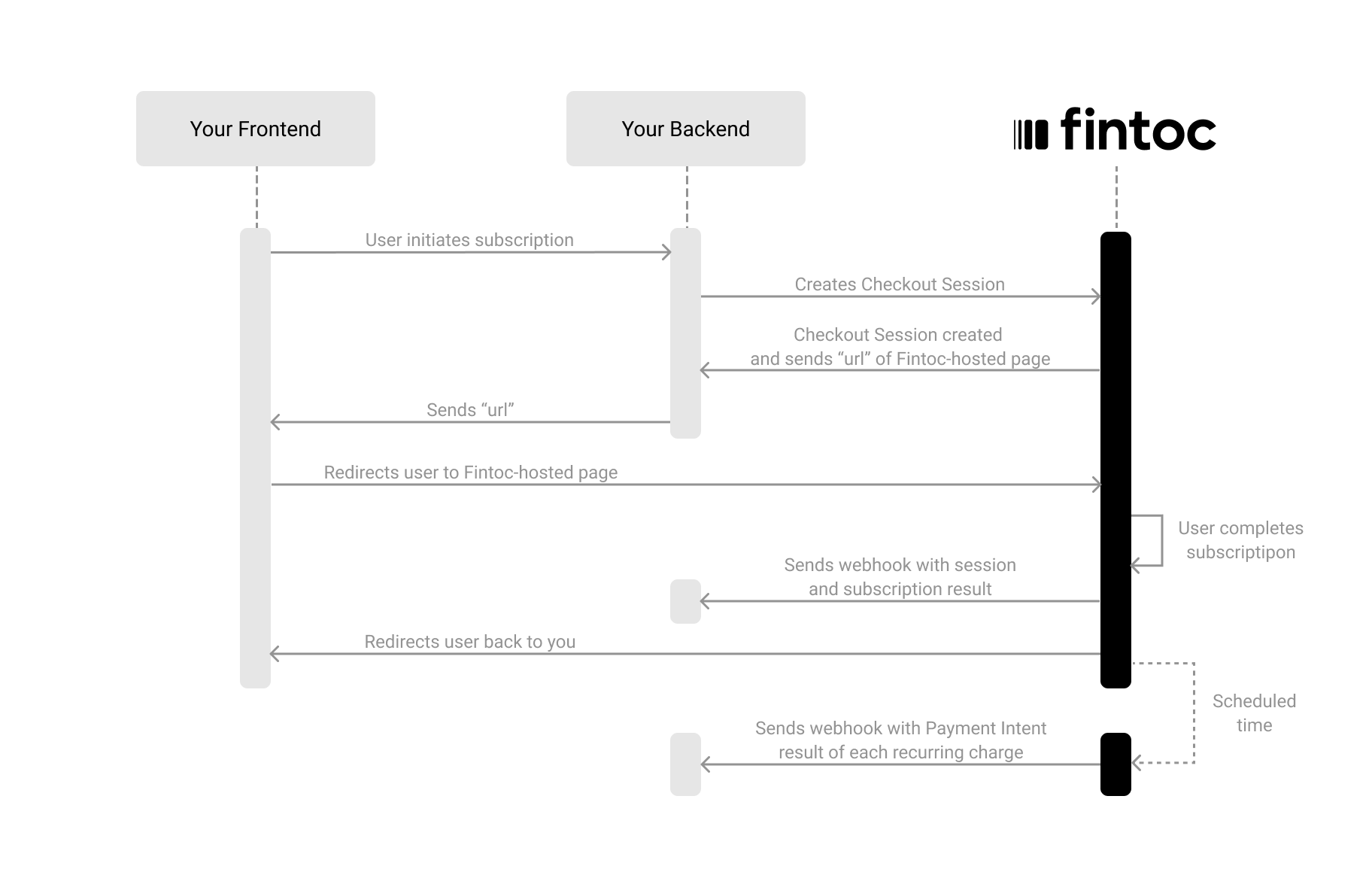
Create a Checkout Session
The Checkout Session object represents your intent to enroll a payment method for recurring charges, and to create a subscription with a fixed amount and periodicity. Using your Secret Key, create aCheckout Session on your backend with flow set to subscription.
Server
Node
id and redirect_url to continue the flow:
redirect_url attribute. In the next step, you redirect the customer to this location to complete the subscription.
The following table describes the parameters you send when creating a Checkout Session:
Include customer data (required for subscriptions)
When creating aCheckout Session with flow: subscription, you must include customer information. You can do this either by referencing an existing customer ID (customer) or by sending customer_data to create one inline:
Include an items list (required for subscriptions)
When creating aCheckout Session with flow: subscription, you must include the items the customer subscribes to. This information lets Fintoc display the items on the checkout page and show only the payment methods available for specific products.
Each item in
line_items must include price_data.
price_data object
product_data object
Redirect the customer to complete the enrollment
Next, redirect the customer to the Fintoc-hosted checkout page using theredirect_url. After the customer completes the enrollment, Fintoc redirects the customer back to your site: to the success_url on success, or to the cancel_url if they cancel.
Client
Handle post-session events
Once aCheckout Session finishes, you handle the result in your frontend and complete the subscription in your backend. For your backend, you use the events that Fintoc sends through webhooks.
Complete the subscription on your backend
Fintoc sends acheckout_session.finished event when the session completes.
In a subscription flow, this event includes information about the session and references to the subscription and payment_method created during enrollment.
Test your integration
To confirm that your integration works correctly, you can simulate subscriptions and scheduled recurring payments without moving any money.1) Create a subscription Checkout Session using test user credentials
Using your test mode Secret Key, create aCheckout Session with flow: subscription on your backend. Then complete the enrollment on the Fintoc-hosted checkout page with the following credentials:
Test credentials
- Username (RUT):
11.111.111-1 - Password:
jonsnow
2) Handle simulated scheduled payments of the subscription
In test mode, the subscription’s scheduled payments are simulated so you can verify how your integration handles success and failure without moving any money. You handle them through the sameinvoice.* and payment_intent.* events described in the Manage invoices section below: a successful charge emits invoice.payment_succeeded and payment_intent.succeeded, and a failed one emits invoice.payment_failed and payment_intent.failed.
Test mode is not yet available for recurring payments in Mexico.
Manage invoices
When a subscription is created after a successful checkout enrollment, Fintoc automatically generates anInvoice for each billing cycle. An invoice represents the amount the customer owes for a given period. Fintoc attempts to collect payment for the invoice using the enrolled payment method.
For full details on invoices, see the Invoice Object.
Invoices in the subscription flow
After thecheckout_session.finished event, the subscription becomes active and Fintoc creates the first invoice. From that point on, you should handle the following invoice-related events alongside the post-session events described above:
Month 1: Right after the subscription is created, Fintoc generates the first invoice and attempts payment immediately. You’ll receive
invoice.created, followed by invoice.finalized, then invoice.payment_succeeded and payment_intent.succeeded on success.
Month 2 onwards: At each billing cycle renewal (based on the subscription’s billing_cycle_anchor), Fintoc creates a new invoice in draft status. After 1 hour, Fintoc attempts payment automatically. On success you receive invoice.payment_succeeded. On failure, invoice.payment_failed.
Recovering a failed payment
When an automatic charge fails, Fintoc emitsinvoice.payment_failed. To recover the payment, send the invoice’s hosted_invoice_url to your customer through your own channel, such as email or WhatsApp. The hosted page lets your customer pay using the payment methods enabled on your organization’s account. A successful payment creates a payment_intent on the invoice and settles the debt. The subscription’s enrolled payment method stays valid, and Fintoc charges the next cycle automatically.
The hosted_invoice_url becomes available on the Invoice object once the invoice reaches open status. For details, see the Invoice object.
An invoice accepts only one payment at a time. If you open the
hosted_invoice_url while an automatic charge is in progress, the page shows that an invoice payment is in progress and the payment link is disabled. Fintoc re-enables the payment link if the automatic charge fails.Test invoice creation with status draft
To test an invoice that is created in draft status, create a subscription with a line item using the product name sandbox_draft:
Server
Node
Checkout Session:
draft status, so you can edit its items with the Add Lines endpoint before the invoice transitions to the next status.
Update the payment method on a subscription
When a customer’s payment method fails, or when the customer wants to switch payment methods, you can update the payment method associated with a subscription. The update affects future billing cycles only. It does not charge open invoices. Collect open invoices separately using each invoice’shosted_invoice_url, one per invoice.
Two flows let you update a subscription’s payment method:
- Case A (user-initiated): Send the customer a new enrollment link. Use this when the customer must authorize a new Chilean automatic debit (PAC) mandate or enter new card details.
- Case B (merchant-initiated): Associate an already-active payment method directly through the API, with no customer interaction.
Case A: Send a re-enrollment link
Create aCheckoutSession with flow: "setup" and pass the existing subscription ID in subscription. The customer opens the link and enrolls a new payment method. Fintoc associates the payment method with the subscription once the mandate activates.
Server
Node
CheckoutSession object:
redirect_url so the customer completes the enrollment.
PAC activation window
For PAC, bank confirmation takes approximately 5 business days. The new payment method stays inpending status during this window, and Fintoc has not yet executed the swap.
checkout_session.finished signals that the customer completed the enrollment flow, not that the swap occurred. Wait for subscription.payment_method_updated before you treat the new payment method as active.
To check the activation state while the mandate is pending, call GET /v2/payment_methods/{id} and read pac.status:
Handle re-enrollment events
Subscribe to the following events when you update a subscription’s payment method through a re-enrollment link:Case B: Associate an existing payment method
If the customer already has an active payment method on file, associate the payment method with a subscription directly, without a new enrollment link.Swap the payment method on an existing subscription
CallPATCH /v2/subscriptions/{id} with the ID of the active payment method. The payment method must belong to the same customer as the subscription.
Server
Node
Subscription:
payment_method value in the response points to the new payment method. Fintoc also emits subscription.payment_method_updated.
Create a new subscription with an existing payment method
CallPOST /v2/subscriptions and include payment_method along with customer and line_items. The payment method must belong to the customer and be active.
Server
Node
Subscription with the payment method already associated:
Updating the payment method on a subscription does not pay open invoices
Updating the payment method changes which method Fintoc charges for future billing cycles. It does not pay open invoices from previous cycles. If the subscription has open invoices when the swap occurs, collect them separately using each invoice’shosted_invoice_url, one per invoice.
Edge cases
One update at a time: Only one payment method update can be in progress per subscription. A second attempt while a PAC mandate ispending returns a payment_method_update_in_progress error (409 Conflict).
Billing cycle during the activation window: If a billing cycle anchor falls while a new PAC mandate is still pending, Fintoc creates the invoice in open status without an automatic charge. Collect the invoice using its hosted_invoice_url.
Cancellation during activation: If you cancel the subscription while a PAC mandate awaits bank confirmation, the swap does not execute. Fintoc creates and stores the new payment method on the customer’s record, but does not associate the payment method with any subscription.