Accepted terminology:Paga con tu banco or Tarjeta de crédito o débitoSupporting images: Combo of Chilean bank logos for Paga con tu banco and Visa + Mastercard logos for Tarjeta de crédito o débitoTo use our assets, you can directly use the URLs we provide, for example:
Refrain from downloading our assets for useWe recommend using the direct URLs to our assets instead. This way, you’ll always have the latest versions without needing to make updates whenever Fintoc changes in the future.
If you have more space available, we recommend supporting bank images with the full Fintoc logo. Fintoc provides a single image you can reference. Use the terminology Paga con tu banco.
In Chile, Fintoc provides the option to pre-select a bank. Use our widget guide to get more information on how to enable these options.Our recommendation depends on your checkout screen:
If Fintoc is your only payment method in Chile: Place single bank buttons outside the widget.
If Fintoc is one of your multiple payment methods in Chile: We recommend placing your user’s top-most used banks (maximum two) as a quick access button outside the widget and placing a general Fintoc button alongside the rest of your payment methods. This ensures quick access for high volume usage of a specific bank.
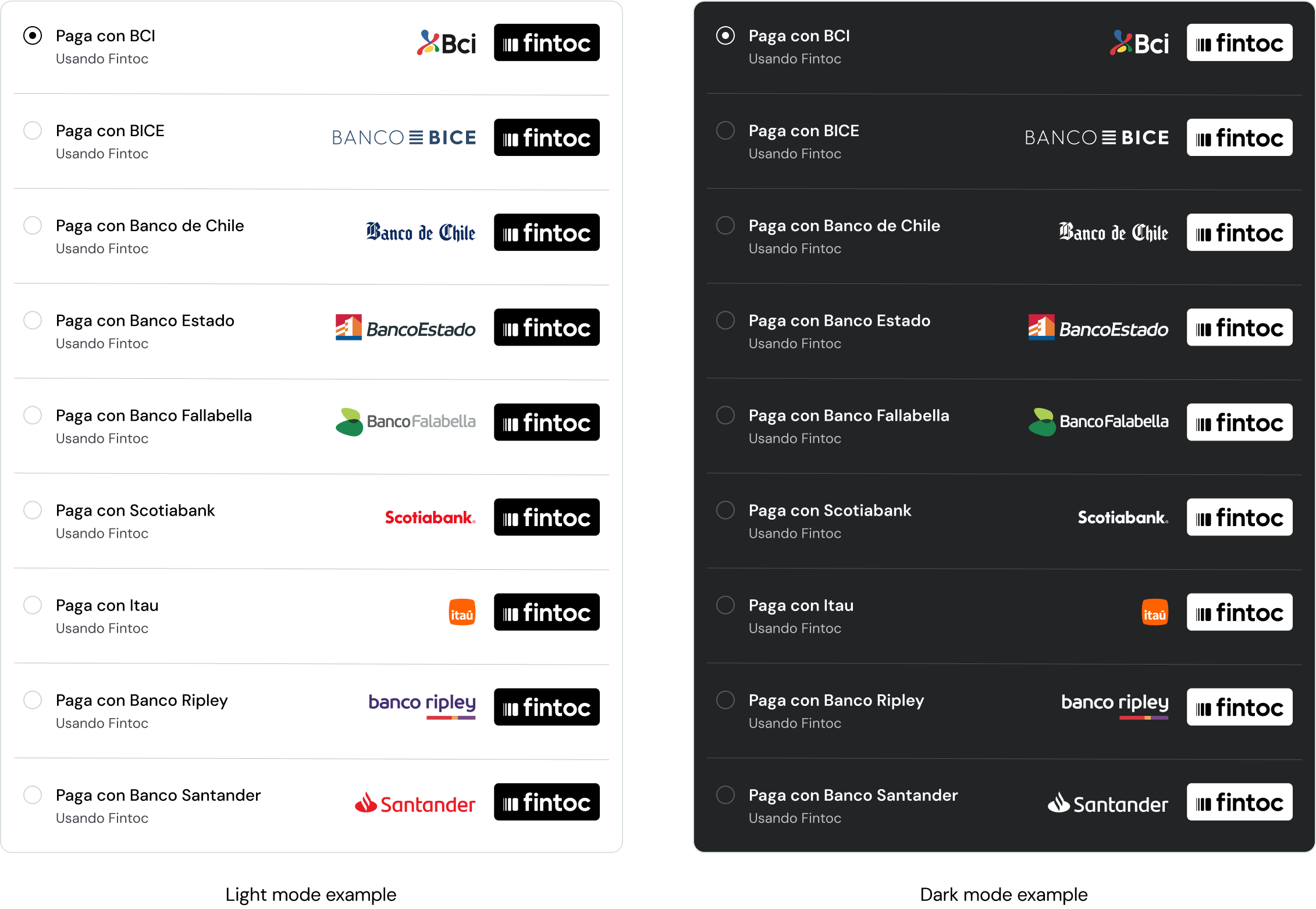
Add the credit or debit card payment button that matches your checkout configuration:Example of checkout button on light and dark modes following the guidelines:
Image
Description
HTML
Horizontal logos to use with the text “Tarjeta de crédito o débito”
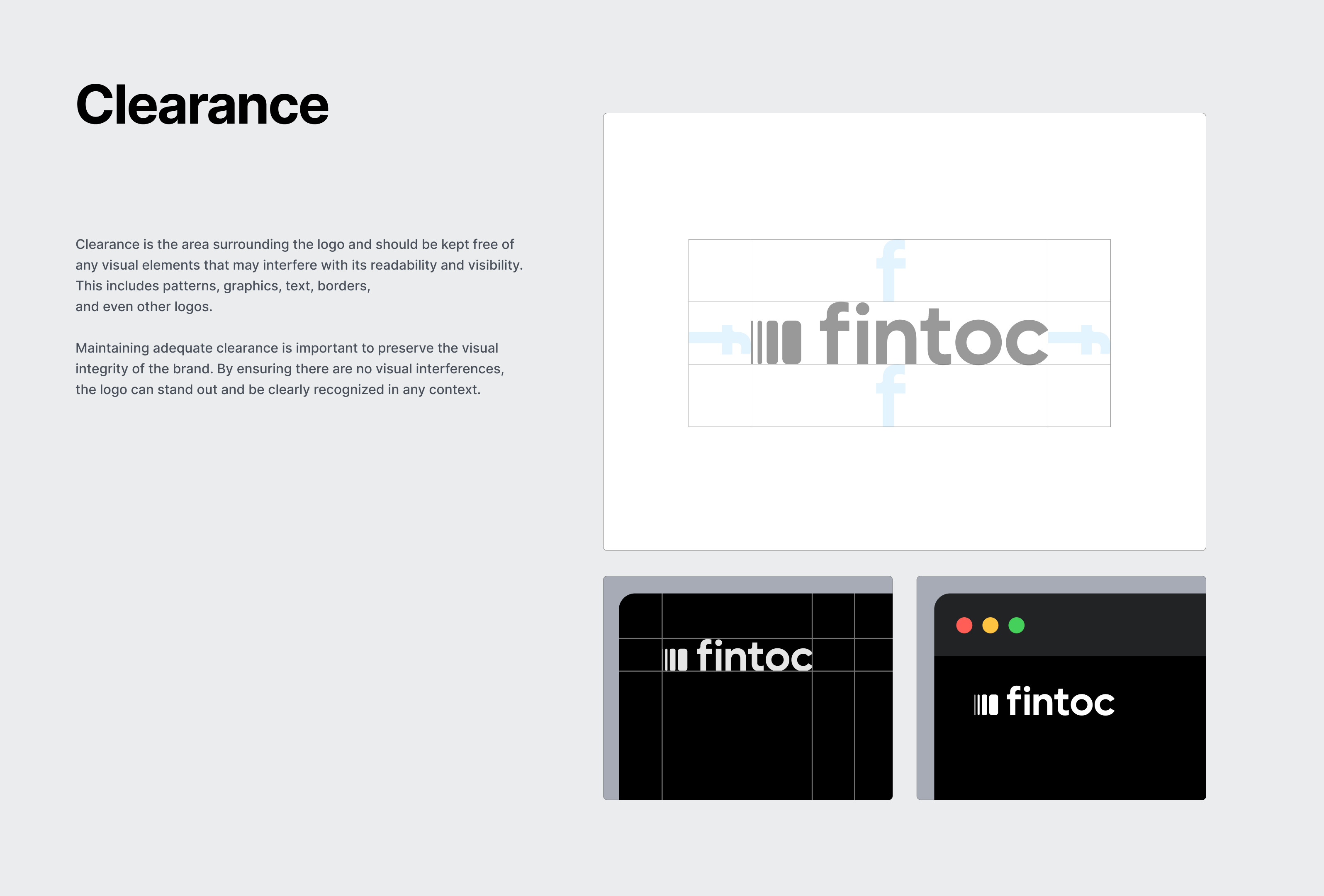
To show your users that you work with Fintoc, display the Fintoc logo.Fintoc provides two URLs that you can embed in your website or app. Leave the recommended safe space around the logo.
Similar to preselecting your user’s bank, you can pre-fill your user’s payment information, such as their Chilean tax ID (RUT), if you have access to that information. You can make the field editable or not. Pre-filling avoids extra steps and helps you meet any regulatory requirements regarding who makes the payment.
Use our widget guide to get more information on how to pre-fill the username field.
When opening the widget, don’t redirect users to a new page as this will create new friction points for your users. Instead, keep them in your app or website and open the widget on top and overlay your current screen.
Avoid repeating navigation elements. Fintoc already includes navigation in the widget, so users can move through the payment flow without duplicate controls.
Fintoc handles recoverable errors inside the widget. For final-state errors, use error_reason to explain why the transaction failed and guide your user to retry. See Payment Intent Error Reason for the full list of reasons.Ask your user to retry with the required changes. Tell them that no money moved because the payment failed.
When a payment succeeds, it’s important to minimize friction from Fintoc’s flow back into your website or app. We highly suggest you show the consequence of using Fintoc, explaining to your user what happens next. Here are some common use cases:
P2P Transfers: Reiterate that the money has been sent and show their account minus the money that was just moved.
Fintech wallets/investment: show their account screen with new money clearly added and visualized.
E-commerce: show a confirmation screen that includes information about the amount paid, billing information, the products purchased, address and delivery date if applicable, or further instructions to obtain the product.
Was this page helpful?
Assistant
Responses are generated using AI and may contain mistakes.