

Getting started: credentials and setup
1. Sign up
To get started, create a Fintoc account. After you complete this step, you can test payments intest mode. To start receiving payments in live mode, contact your assigned sales representative or sales@fintoc.com so Fintoc can activate your account and provide the required credentials.
2. Obtain API keys
Within your Fintoc dashboard, you will find both Test and Live API Keys. These keys are vital for configuring the plugin within your VTEX environment. To get your Live API Keys, make sure you are in Live mode by checking the button on the bottom left of our dashboard. Then, head over to For Developers → API Keys to obtain them.Integration and configuration process
Enabling the plugin in your VTEX store
Follow these steps to activate Fintoc’s plugin within your VTEX store:- Log in to the VTEX admin platform using your credentials.
- From the side menu, select the Store Settings icon located at the bottom of the screen.
- Within the settings, navigate to PAYMENT: Providers.
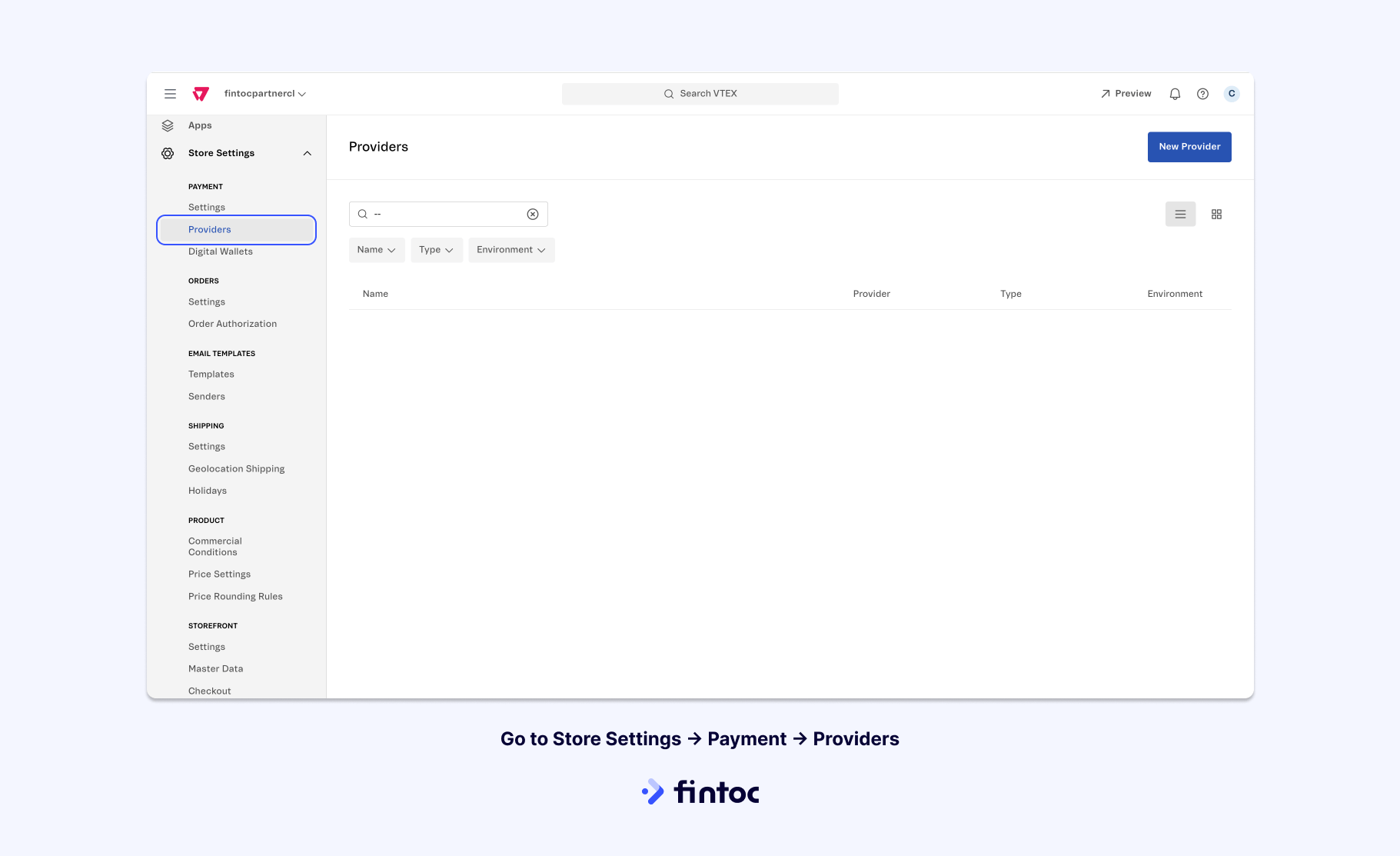
- Click on the “New Provider” button to add a new payment provider.
- Look for Fintoc and choose it from the list.
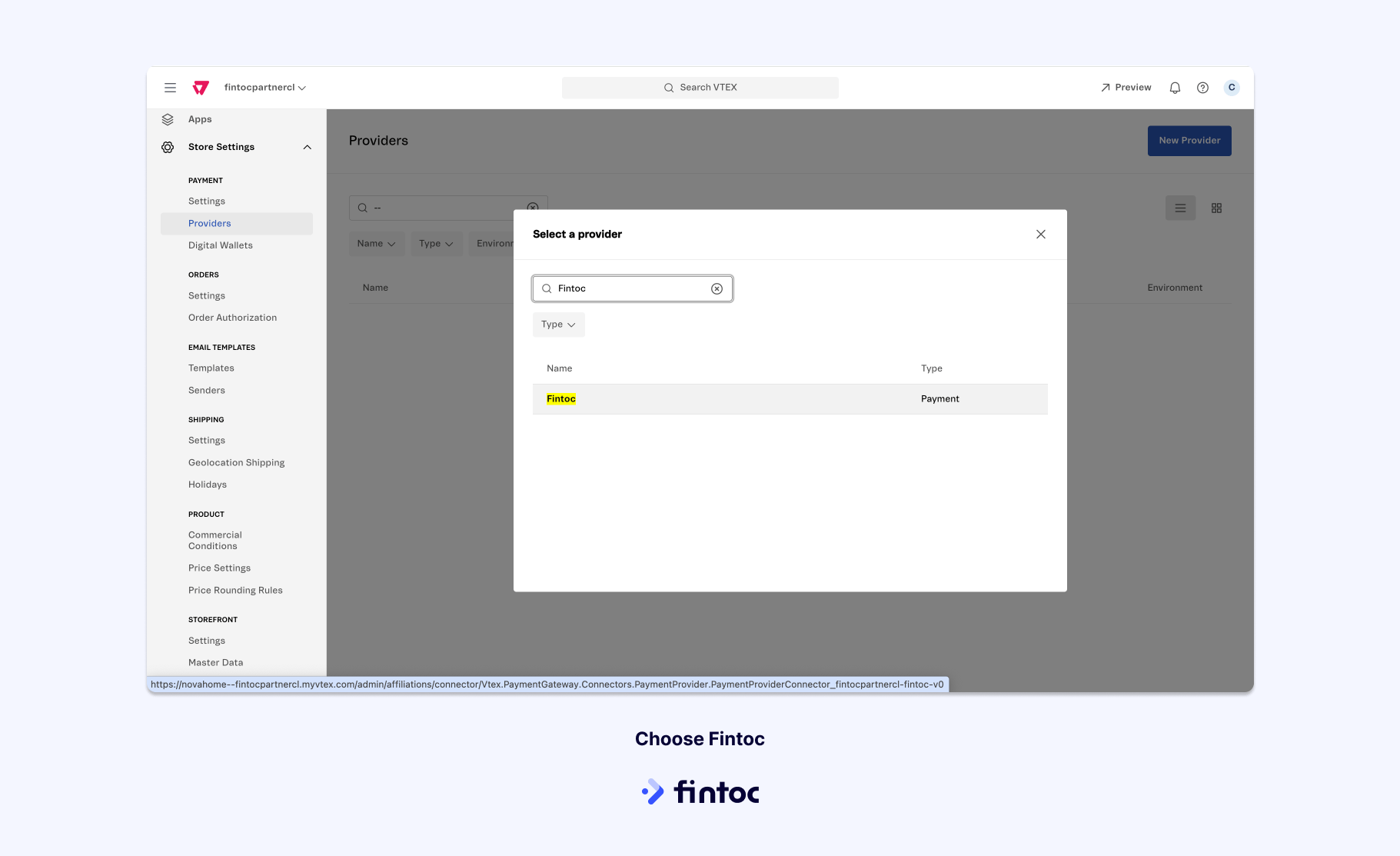
- Complete the Configuration options as follows:
- Enter your Live Mode Public Key, which can be located in your Fintoc dashboard, into the Application Key field.
- Similarly, insert your Live Mode Secret Key from your Fintoc dashboard into the Secret Key field.
- You can insert ********** into the Application Token field or leave it blank.
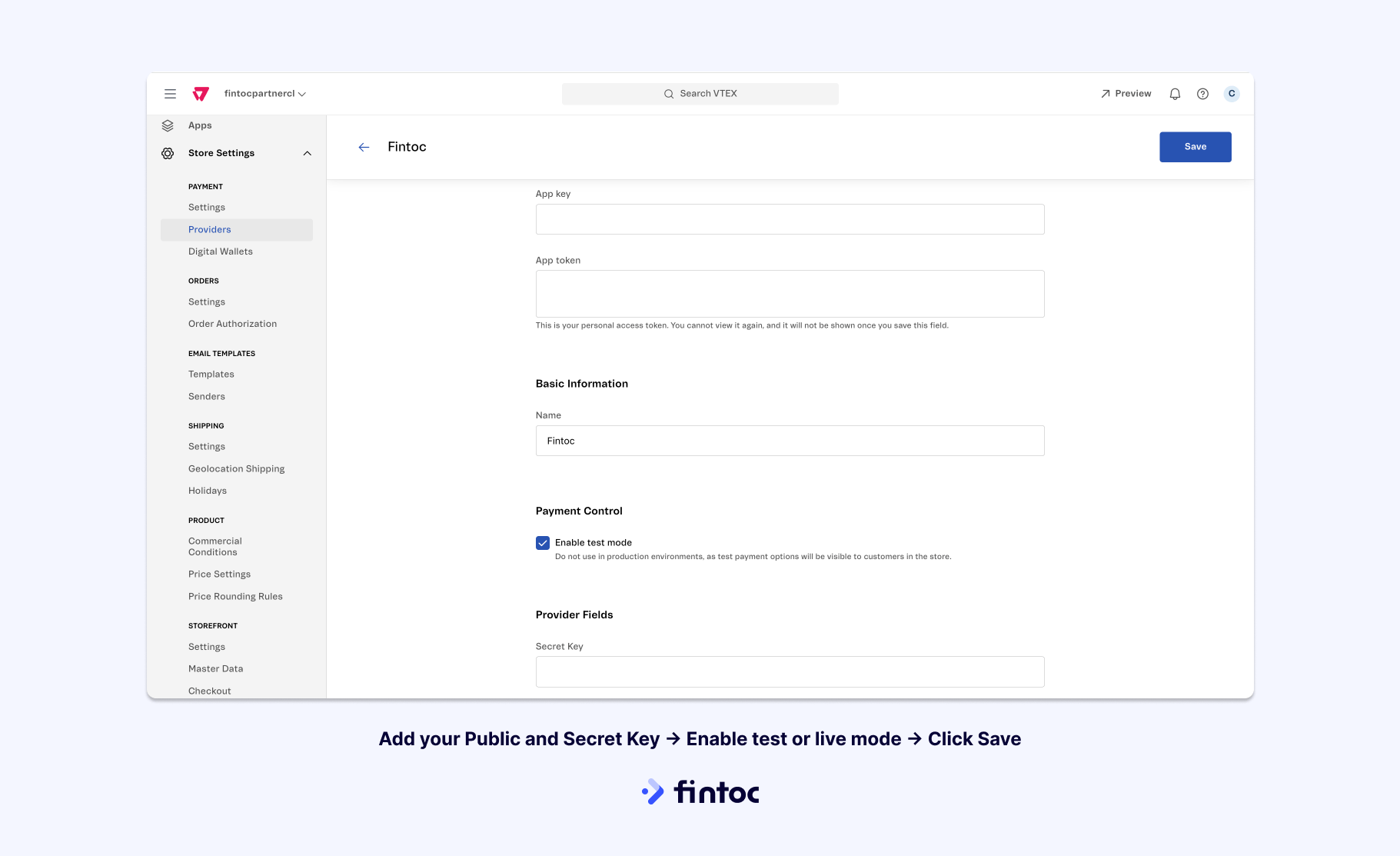
- To use Test mode, select the Enable test mode checkbox and enter your Test Mode API Keys
- When using Test mode, you can try out your integration following the instructions you can find here.
- Deactivate the Enable test mode checkbox and change your API Keys back to Live to switch to Live mode.
- Confirm your choices by clicking the Save button.
- Your VTEX store is now fully equipped to process payments via Fintoc.
Payment configuration
Change connector’s name
To improve checkout clarity, change the connector name to “Pay with your bank” (“Paga con tu banco”) so customers recognize Fintoc as a bank payment method. To do so, you can follow VTEX’s guide on changing payment method names.Decimal inconsistencies
For those setting up a store in Chile, it’s essential to make specific adjustments to avoid decimal-related inconsistencies in payments and reconciliations. Here’s how to do it:- Navigate to VTEX Store Settings.
- Select ORDERS: Settings.
- Within the General section, locate the Cart settings and adjust the Number of decimal digits to be considered to 0.
- Finalize the process by clicking the Save button.